Notes
Notes are your own words alongside what you read. You can add a note to a highlight, or add notes on a book or article level.
Imported notes from Kindle, Apple Books, Kobo, and Readwise come in with your highlights too. You can also create notes yourself anytime.
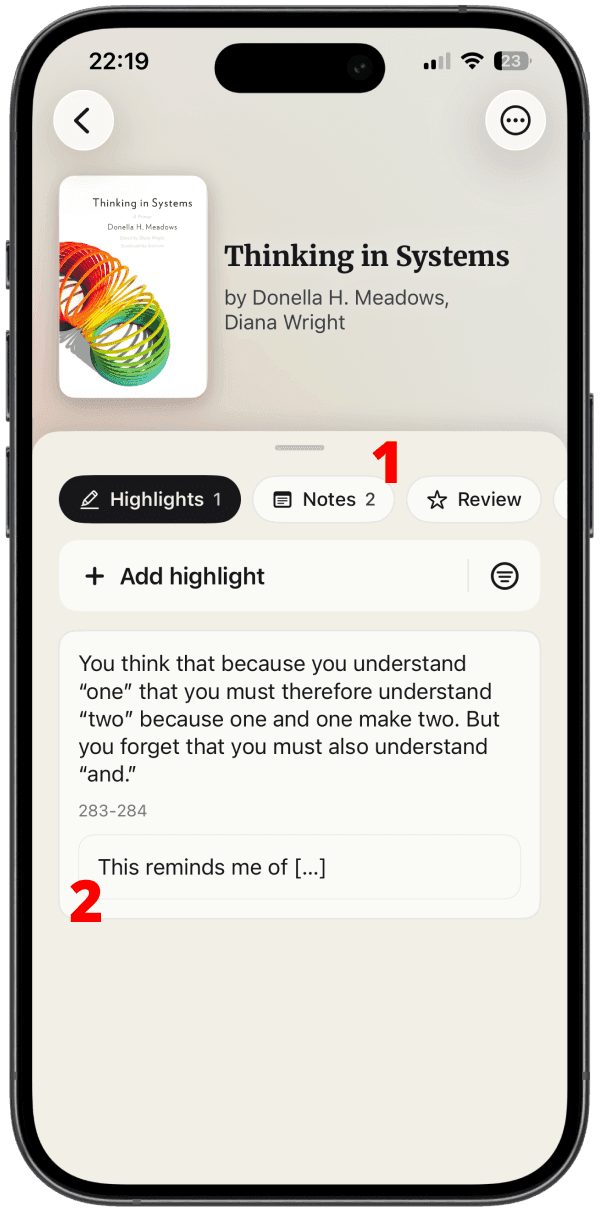
In this screenshot below, you can see both (1) a note on a book (displayed under a separate tab) and (2) a note attached to a specific highlight.
Add a note to a highlight
On iOS and Android, long-press a highlight and tap Notes. On web, open Edit on the highlight and add a note there.
Notes on a highlight show under it on the Highlights tab.
Add a note on a book or article
Open a book or article, go to the Notes tab, and tap Add note.
Use these for thoughts about the whole source, reminders, or anything that doesn’t map to a single highlight.
Edit and format
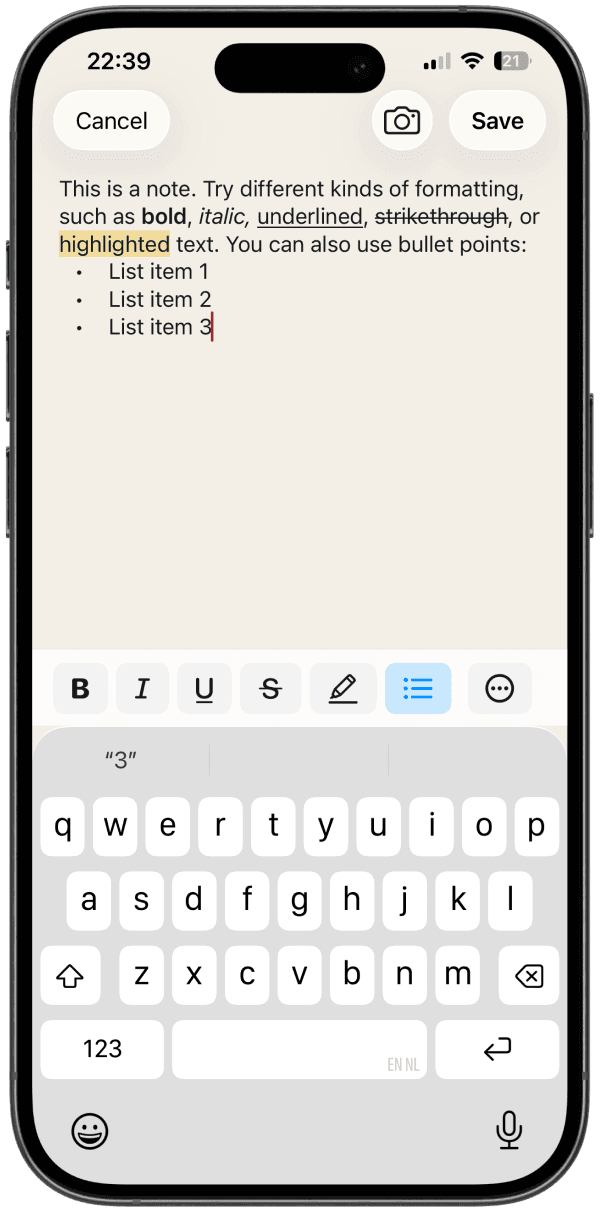
You can edit a note anytime. Notes support formatting such as bold, italic, underline, strikethrough, highlight marks, and bullet lists.
For imported notes, your changes are saved as an edit. The original text stays available if you want to restore it later. For manually created notes, edits update the note itself.
Archive or delete
Manually created notes can be deleted. For imported notes, you can archive them: that hides the note and keeps it from coming back on the next import. You can unarchive later, or permanently delete instead.
If you archive or delete a highlight, its notes (if any) go with it.
To view archived notes inside a source, open Filters and turn on Show archived.