Managing Highlights
Once your highlights are in PastReads, you can tag them, mark favorites, edit text, chain related passages, and archive what you don’t need.
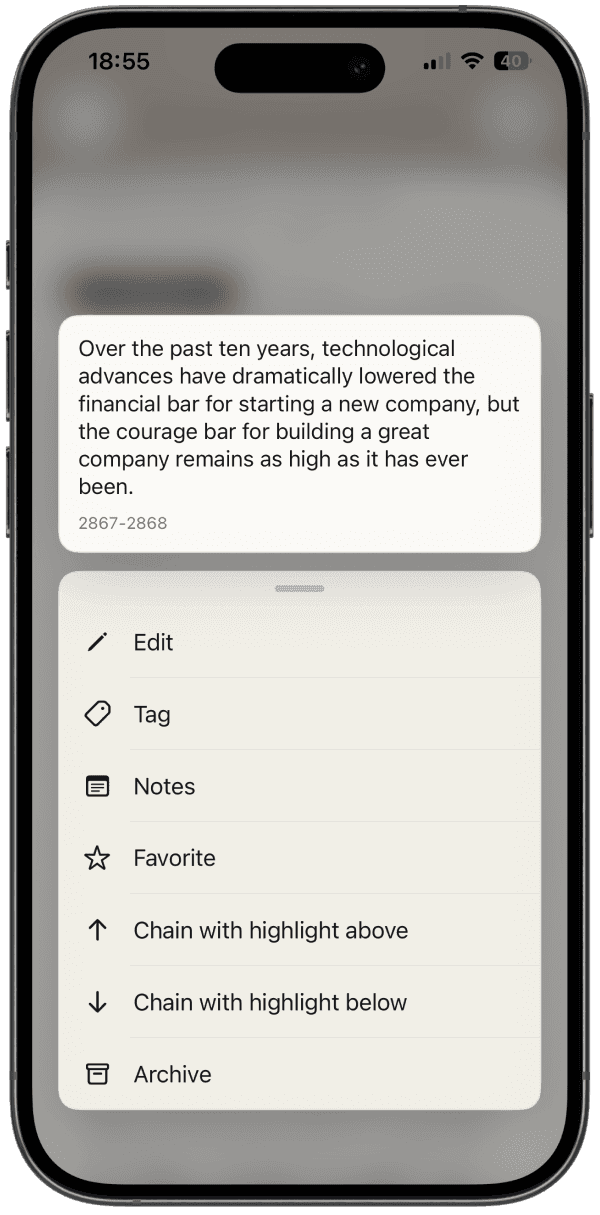
Most of these actions can be done on a highlight itself. In the iOS and Android app, long-press a highlight to open the action menu. On web, actions are visible on each highlight card.
Favorite a highlight
Favorites are a fast way to mark passages you want to find again (or to include as a filter in reading recaps).
On iOS and Android, swipe a highlight card to the left to mark it as favorite. On web, click the star.
Favorited highlights are shown as yellow cards.
Tag a highlight
Tags help you organize your highlights by topics, projects, or anything else you want to find quickly in your library.
To create or assign a tag, tap the tag icon.
To rename or delete tags globally, go to Account → Tags. Deleting a tag removes it from every highlight that used it.
You can also view all highlights with a specific tag by searching for the tag in the search field.
Free accounts can create up to 3 tags. PastReads Pro unlocks unlimited tags.
Edit a highlight
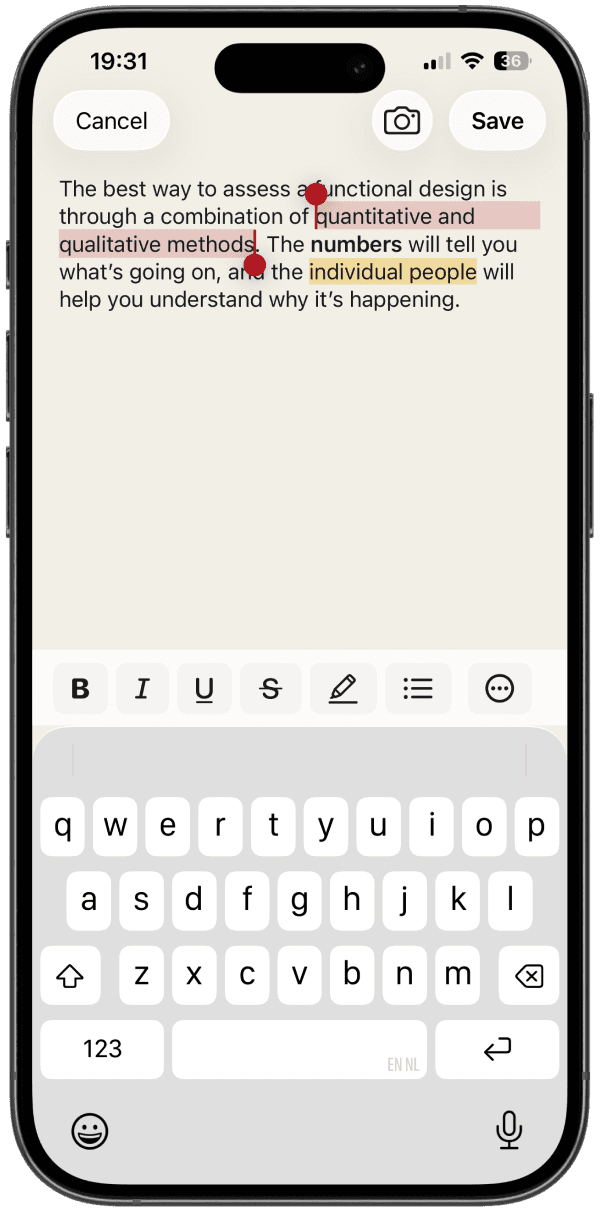
To edit a highlight, long-press it and tap Edit (or click the Edit icon on web).
You can update the content or apply formatting (such as bold, italic, underline, strikethrough, and bullet lists).
- For imported highlights, your changes are saved as an edit. The original text stays available if you want to restore it later.
- For manually created highlights, edits update the highlight itself.
Chain related highlights
When two consecutive highlights belong to the same passage, you can combine them into one card. This is useful for multi-paragraph quotes that came in as separate clippings.
On each highlight, you can choose:
- Chain with highlight above
- Chain with highlight below
- Unchain all (when a highlight is already chained)
Archive or delete
Manually created highlights can be deleted. For imported highlights, you can also archive them: that hides the highlight and keeps it from coming back on the next import. You can unarchive later, or permanently delete instead.
If a highlight has notes, those go with it when you archive or delete.
To review archived items inside a source, open Filters and enable Show archived.
Filter and reorder inside a source
When viewing a source, tap the filter control to open Filters. You can:
- Show or hide archived highlights
- Limit the list to favorited highlights (Pro)
- Filter by how a highlight was added: Imported or Manually created (Pro)
- Switch order between location and a customized order (Pro)
With customized order, tap Adjust order, drag highlights into place, then tap Done.
Notes
Highlights can have notes attached, and you can also add notes on a book or article. See Notes for the full guide.