Manual
While PastReads offers automated imports from popular reading platforms like Kindle, Apple Books, and Kobo, you can also manually add books (or other sources), highlights, and notes to your library. This is perfect for physical books or any other reading material not supported by the automated import options.
Adding Content
Adding a New Source
Click the Plus / Add button in your library
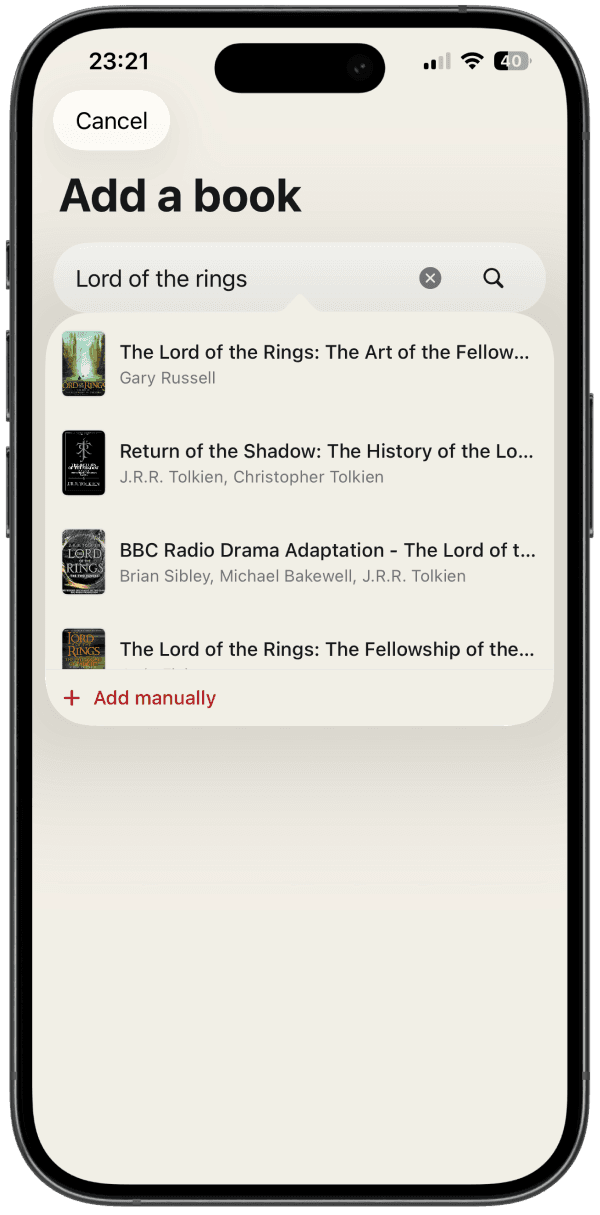
Select Add Book / Article / Museum / Other (depending on what you'd like to add)
Enter the title or author (and optionally pick a result from the search)
After adding a source, you can start adding highlights and notes to it.
Adding Highlights and Notes
You can add a highlight or note to a source in two places:
- Using the Plus / Add button. Choose a highlight and pick the right source
- From within the source's view using the "Add" button
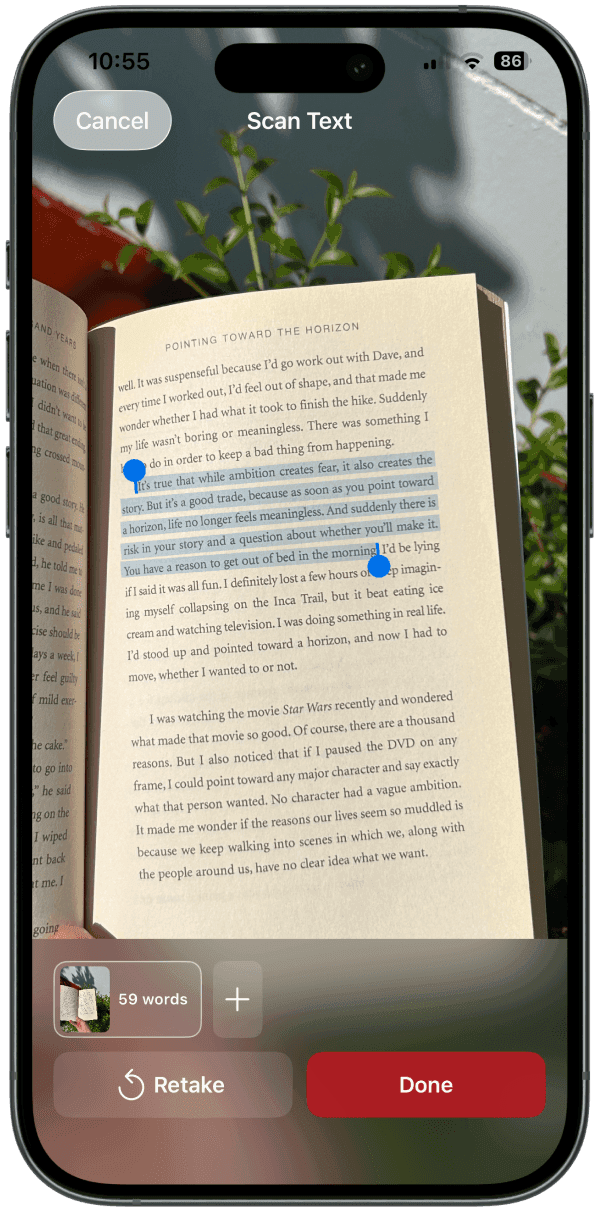
Tip: When writing a highlight or note, you can also use the camera view when you're on the mobile app. Just pick the Camera button and point it at some text. You can select text and even capture multiple pages at once.
Tips for Manual Creation
- Rich Text Formatting: The editor supports rich text formatting. This allows you to preserve formatting from your original source.
- Adding Notes to Highlights: You can add notes to highlights at the time of creation or later by editing the highlight.
- Organizing Content: After adding content manually, you can organize it using the same features available for automated imports:
- Add tags for better organization
- Create collections
- Mark highlights as favorites
- Archive content you no longer need
KOReader
Learn how to export highlights from KOReader to PastReads with the PastReads plugin and an access token.
Readwise
Learn how to import your Readwise highlights and notes into PastReads. A comprehensive guide covering the Readwise export process to sync all your reading insights with your PastReads library.