Export Your Library as PDF Files
PastReads allows you to export your entire reading library (highlights and notes) as PDF files. When you export your library, each source (book, article, etc.) is saved as a separate PDF. This makes it simple to read your highlights offline, print them, or share them as documents.
PDF export is a PastReads Pro feature
How to Export
Navigate to the Export page in your PastReads dashboard
Scroll down to the PDF Export section
Click the "Export Library" button
Your browser will automatically download a ZIP file containing all your PDF files
What Gets Exported
PastReads exports your complete reading library with full fidelity:
- 📚 All Sources: Books, articles, and any other sources from your PastReads library
- 📖 Source Metadata: Title, author, type, and URL
- 🔍 Highlights: Complete text with location and color when available
- 📝 Notes: Notes on highlights and notes on the book or article
Export File Structure
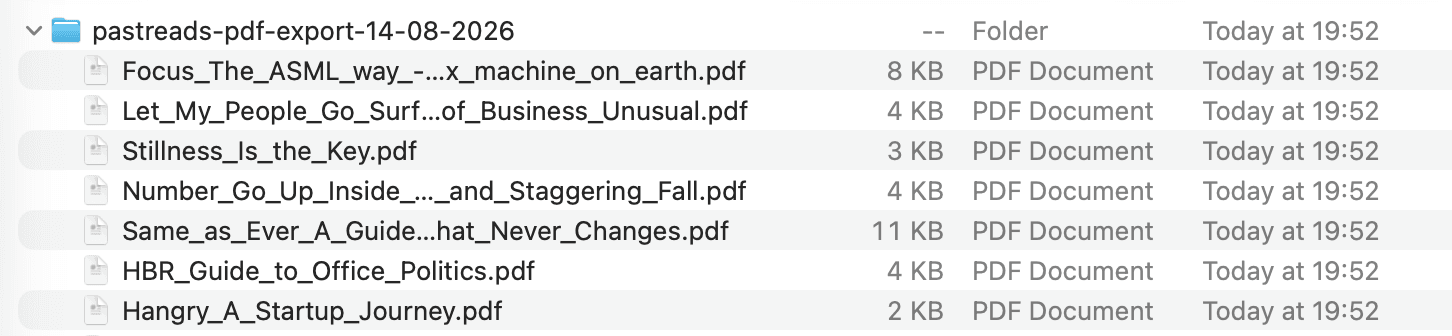
ZIP Archive Contents
The exported ZIP file contains one PDF file for each source in your library. Files are named using the source title, with special characters removed and spaces converted to underscores (e.g., Name_of_Book.pdf).
PDF File Format
Each source file follows a consistent structure:
-
Source Header: Title, followed by author, type, and URL (when present).
-
Highlights Section: Each highlight is shown as an indented quote, with optional location, color, and any attached notes labeled "My Note".
-
Notes on the book or article: Notes that aren’t tied to a specific highlight appear in a separate Notes section.
Need any support?
If you encounter any issues with PDF export, please contact our support team. We're here to help ensure your reading insights are properly exported and accessible in the format you need.