Export Your Library to Notion
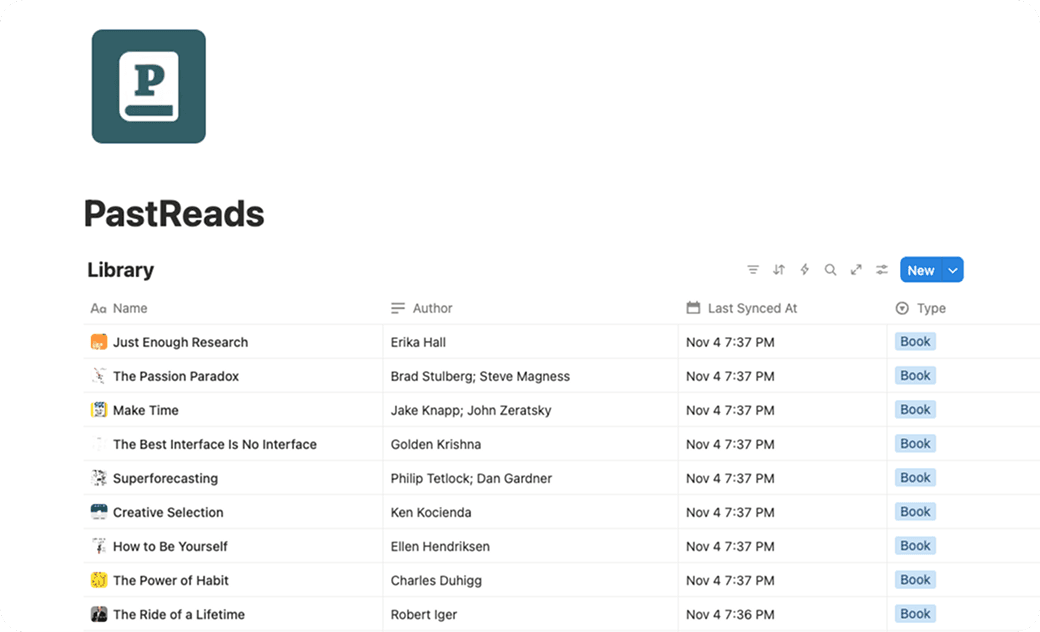
PastReads allows you to export your entire reading library to Notion, creating a structured database where each source (book, article, etc.) becomes a database entry containing all its highlights and notes. This feature is perfect for anyone who wants to integrate their reading insights with their Notion workspace.
Notion export is a PastReads Pro feature
Setup Process
Navigate to the Export page in your PastReads dashboard
Click the "Connect" button in the Notion Export section
Authorize PastReads to access your Notion workspace
Choose where to create your PastReads database:
- Workspace level: Creates the database at the root of your workspace
- Inside a specific page: Select an existing Notion page as the parent
Click "Create Database" to initialize your PastReads database
Once connected, you can start exporting your library immediately or at any time.
What Gets Exported
PastReads exports your complete reading library with full fidelity:
- 📚 All Sources: Books, articles, and anything else from your PastReads library
- 📖 Source Metadata: Author, source URLs, and cover images
- 🔍 Highlights: Complete text with original formatting and location
- 📝 Notes: Both standalone notes and notes attached to highlights
- 🔗 Rich Formatting: Preserves bold, italic, and other text formatting
Export Behavior
Append-Only Updates
PastReads uses an intelligent append-only approach:
- First Export: Creates new Notion pages for all your sources with complete content
- Subsequent Exports: Only adds new highlights and notes since the last export
- Incremental Sync: Each export picks up where the previous one left off
This means that you can make changes to your database in Notion without worrying about them being overwritten. Also keep in mind that your library is not automatically synchronized. It's a one-way export from PastReads to Notion.
To ensure system stability and comply with Notion's API limits, you can export to Notion once per hour. Large libraries may take up to 30 minutes to fully export.
Content Organization in Notion
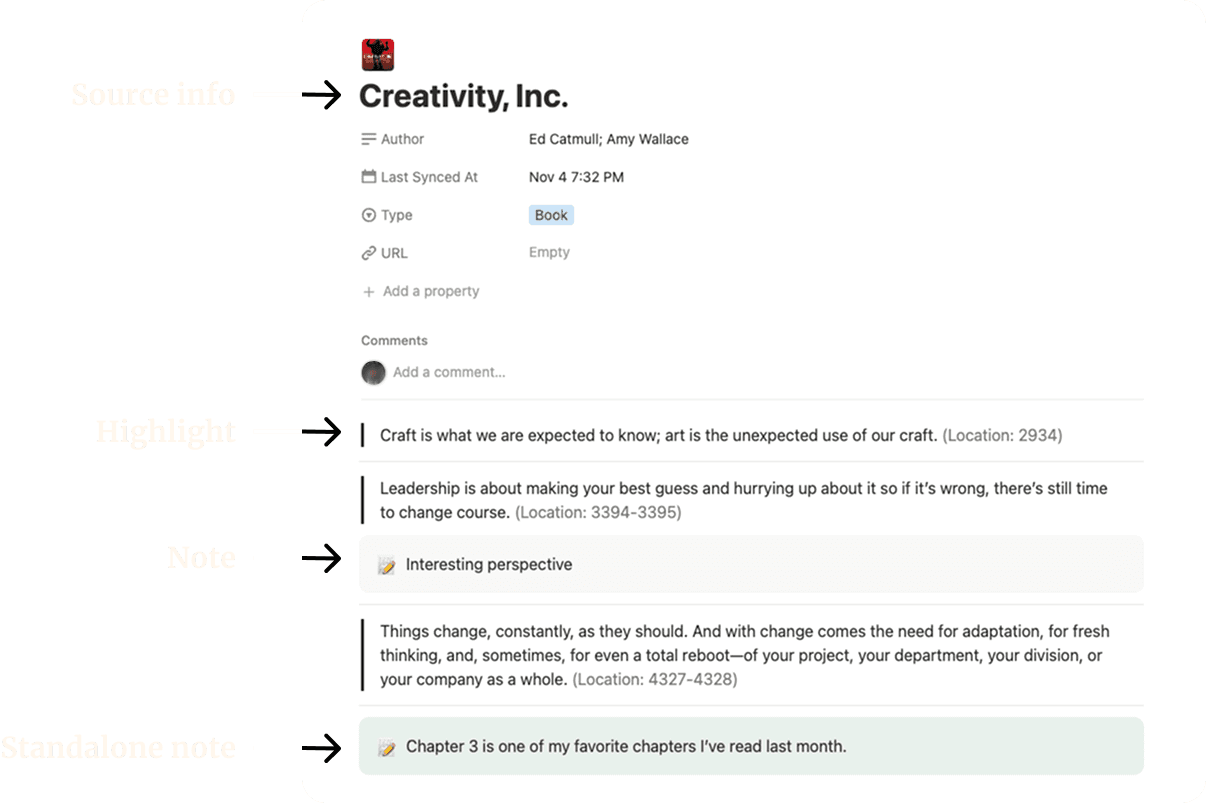
Within each source page, your content is organized as follows:
Highlights
- Highlight Text: The full highlighted text with rich formatting
- Location Data: Page numbers or other location metadata
- Associated Notes: Any notes you've attached to the highlight appear directly below (with a 📝 icon and grey background)
Standalone Notes
- Callout Blocks: Notes without highlights appear in green callout blocks with a 📝 icon
- Full Formatting: Rich text formatting is preserved
Chronological Order
All content appears in chronological order (oldest to newest) within each source page.
Troubleshooting
Disconnecting Notion
To disconnect Notion from PastReads:
Go to the Exports page
Expand the Notion Export section
At the bottom, click "Disconnect Notion"
Confirm the disconnection
Note: Disconnecting will not delete your exported data from Notion, it only removes the connection between PastReads and your Notion account.
Need any support?
If you encounter any issues with Notion export, please contact our support team. We're here to help ensure your reading insights are properly integrated with your Notion workspace.