Import Your Google Play Books Highlights
Importing from Google Play Books is a little tricky: Google Play Books only lets you export highlights one book at a time. Once a book’s notes are saved to Google Drive, you can email that file to PastReads and we process it automatically.
Email your notes
Make sure your Google Play Books account is set to save highlights and notes to Google Drive. See the instructions below for details.
In Google Drive, open the notes file for the book you want to export.
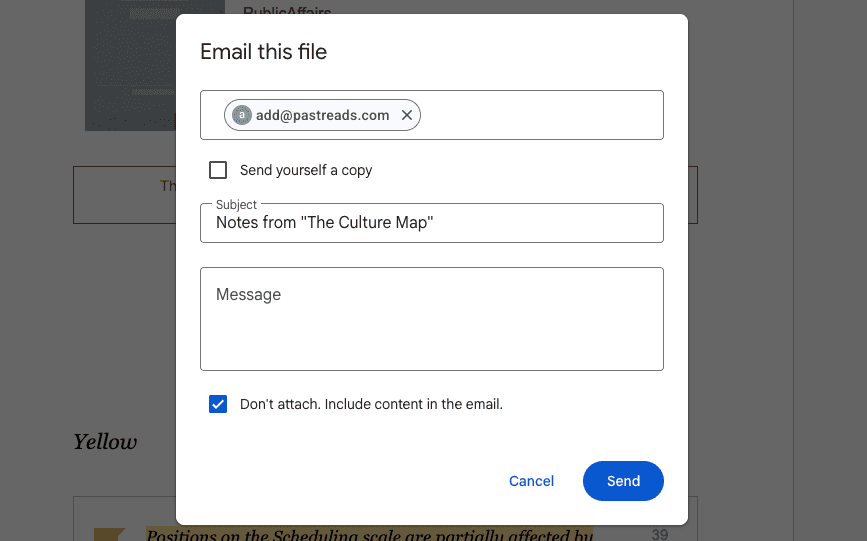
Go to File → Email → Email this file.
Select "Don't attach. Include content in the email." and send it to [email protected].
Your highlights will be processed automatically, usually within a minute.
PastReads has advanced duplicate detection, so you can email updated files again at any time without creating duplicates.
Save Google Play Books highlights in Google Drive
Google Play Books can sync highlights to Google Drive so you can email them to PastReads.
Open the Google Play Books app. Go to Play Books settings → Ebook reading, and enable Save notes, highlights, and bookmarks in Google Drive.

Troubleshooting
If you encounter any issues:
- Your Google Drive account email must match your PastReads account email, or be added as an associated email. Google automatically sends the notes from that Drive account.
If your Google Drive account is different from your PastReads sign-in email, add it under My Profile > Settings > Associated emails.
- Make sure Don't attach. Include content in the email. is selected. PastReads needs the notes in the email body, not only as an attachment.
- Some books may export a row that says "Highlighted text cannot be displayed." Those rows are skipped because Google does not include the passage text.
- Most imports are processed within a minute. Please wait a short while if you don't see your highlights appear.
- Check your email for status updates. A confirmation will be sent after your email is successfully received.
Google Chrome
Learn how to easily highlight text from any web article and save this into PastReads using the Google Chrome browser extension.
Kindle
Learn how to import your Kindle highlights and notes into PastReads. A comprehensive guide covering both Kindle device and Kindle app import methods to sync your reading insights with your PastReads library.