Save Text on iOS
PastReads lets you save text on iPhone and iPad through the iOS Share Sheet. This allows you to add text from any app or website, for example from Safari.
Quick Start
Make sure you've installed the PastReads app on iOS.
Open Safari or another app.
Select the text you want to save.
Tap Share and choose PastReads.
PastReads opens with your text prefilled. Assign a new or existing source and save.
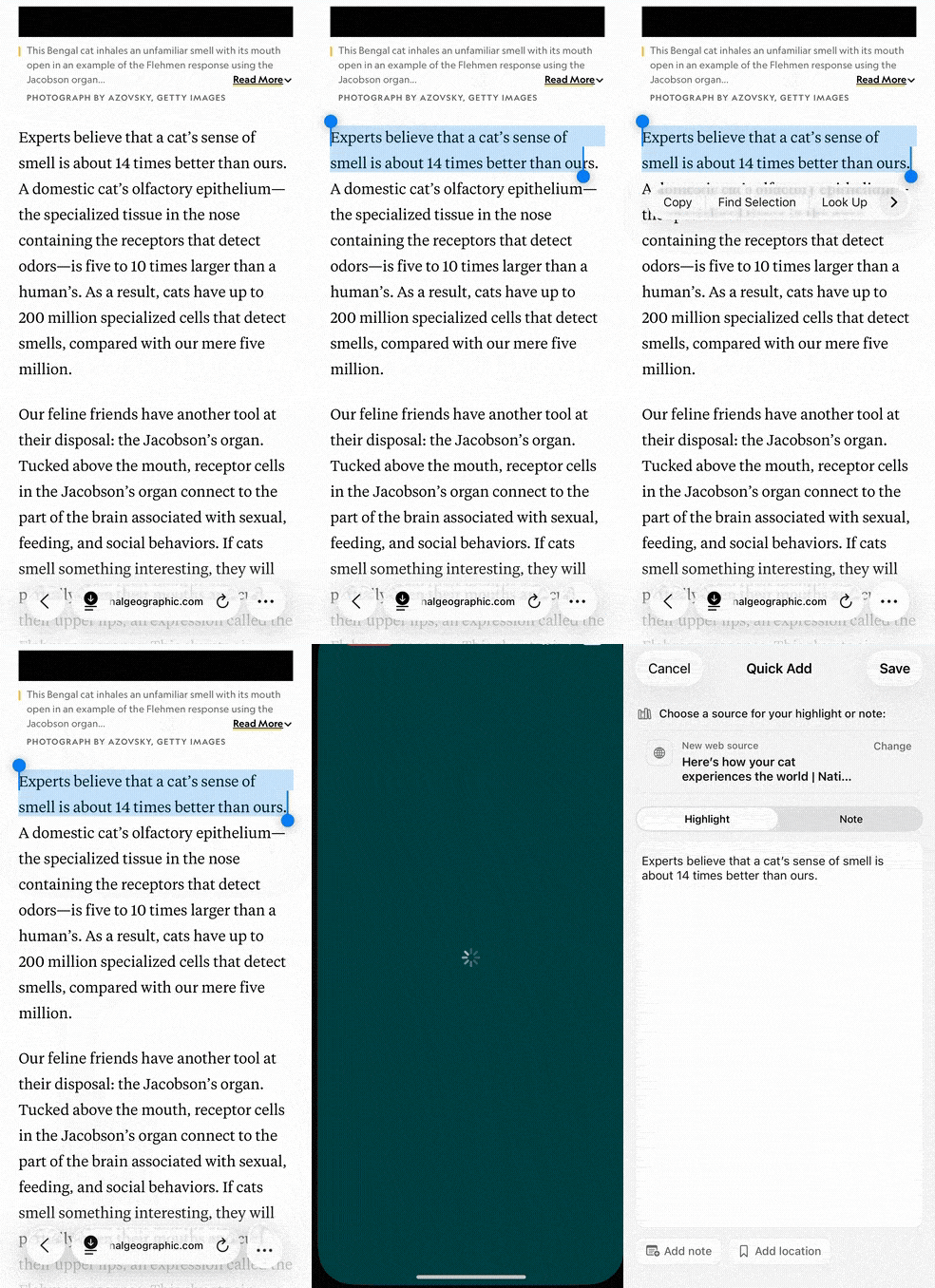
Safari
When you share text from Safari or another iOS app, PastReads can automatically detect and save the source as a web article.
Please note: To include the web article’s link and title with your highlight, use the share button in Safari’s navigation bar and not the floating share option that appears directly above selected text. Using the navigation bar’s share button ensures that PastReads receives the article details when you save your highlight.
Please contact our support team if you run into issues.