Collections
Collections group sources (whole books, articles, and more) so you can organize your library by self-chosen topics, projects, or reading lists.
A source can belong to more than one collection, and deleting a collection never deletes the sources inside it.
Create a collection
On iOS and Android, the fastest place to start is the Library tab. Tap the collection filter and tap New Collection at the bottom of the menu.
On web, go to the top of the Library page and click New collection.
You can also create a collection when assigning a source to one.
For each collection, you can set a Collection Name (for example, “Economics”) and pick an icon.
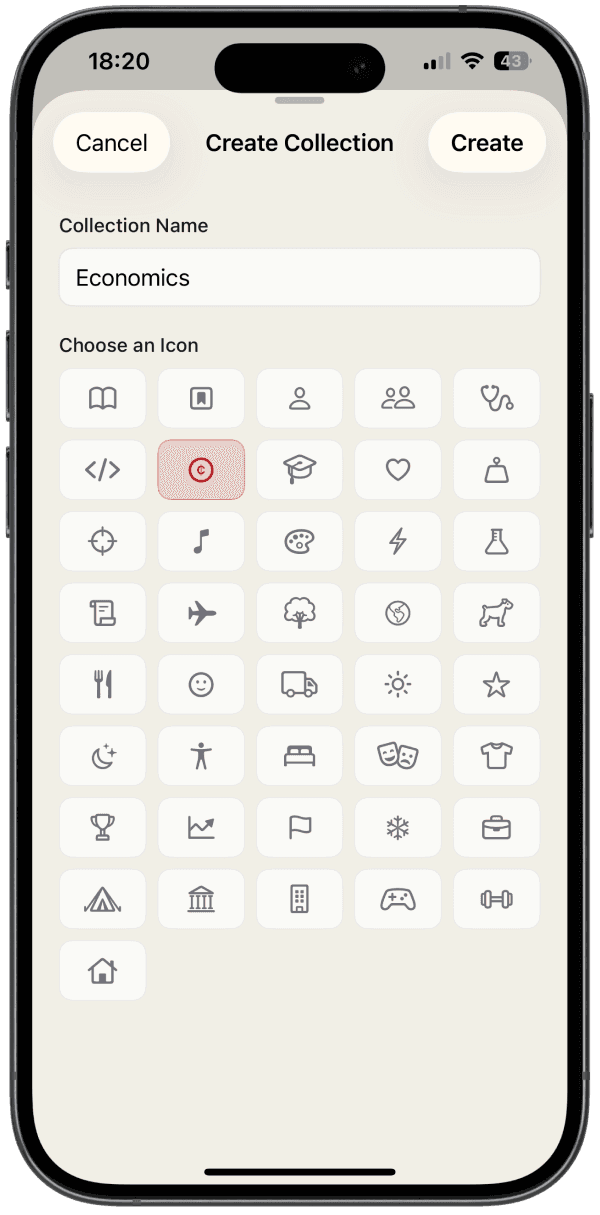
Free accounts can create up to 3 collections. With PastReads Pro, you can create unlimited collections.
Add sources to a collection
Once you have at least one collection, you can assign sources to it.
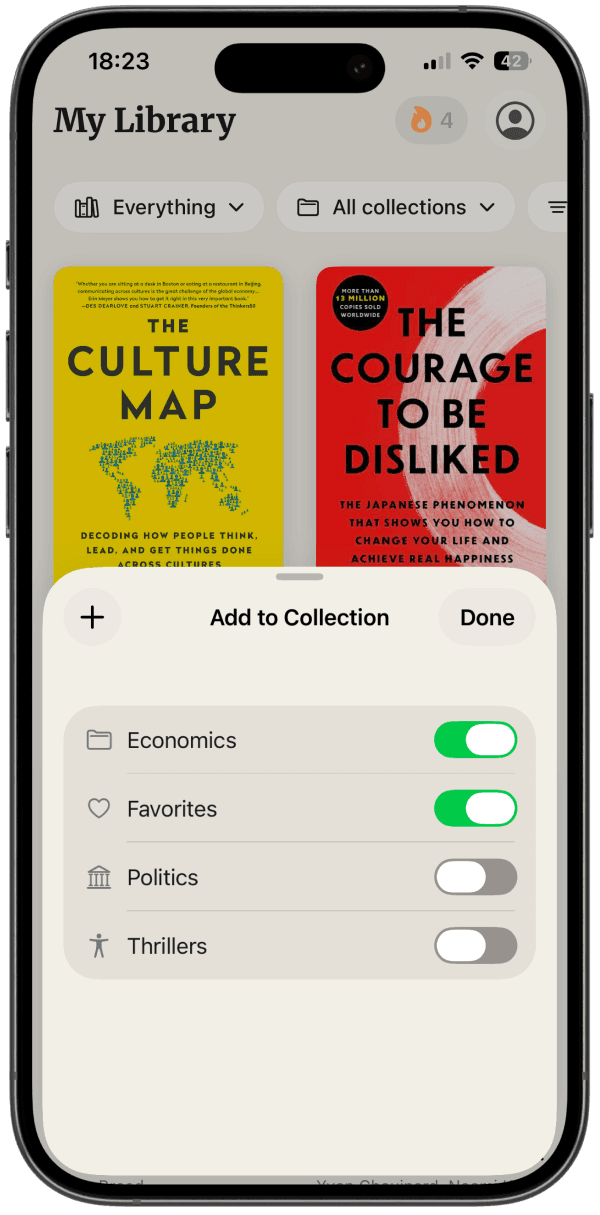
On iOS and Android, you can add a source to a collection by long-pressing a book in the Library, or by tapping the Edit icon when viewing a source.
On web, simply drag a source into a collection tile on the Library page, or click the collection button when viewing a source.
Use your collections
Filter your library
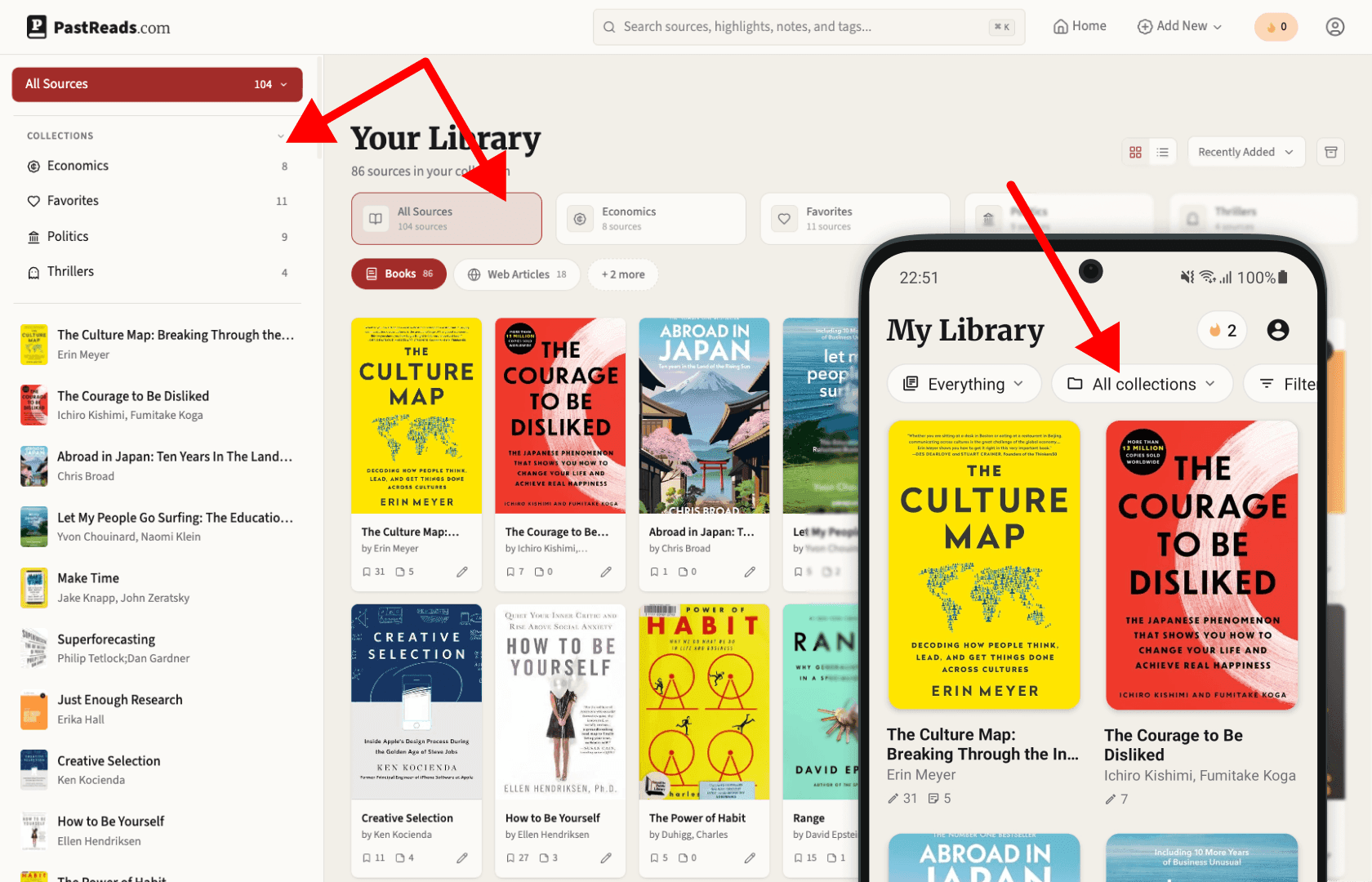
Tap the collection pill and choose a collection to show only its sources. Choose All collections to see everything again.
Collection filters combine with your usual library filters (books vs web articles, sort order, and so on).
Customize your recaps
On PastReads Pro, custom reading recaps can pull highlights from specific collections. That’s a good reason to keep collections focused. For example, a “Work” or “Best Novels” collection can become its own review stream.