Import Your KOReader Highlights
PastReads connects to KOReader through a small plugin that registers PastReads as an export target in KOReader’s built-in Export Highlights feature. Install once, paste an access token, then export from the current book or your library over Wi‑Fi.
One-Time Setup
Download the PastReads plugin, unzip the archive, and copy provider-pastreads.koplugin into KOReader’s plugins/ folder. Then, restart KOReader.
In PastReads, open Import, select KOReader, and click Generate token.
In KOReader, open Export highlights → Choose formats and services → PastReads. Paste your token, then enable Export to PastReads.
Sync Highlights
Once setup is done, you can export anytime:
Make sure your device is connected to Wi‑Fi so the plugin can send highlights to PastReads.
In KOReader, open Export highlights and export the current book or your library.
You can also use Share as pastreads where available.
Refresh PastReads if needed. Highlights usually appear within a minute.
PastReads has advanced duplicate detection, so you can export the same book again without creating duplicate highlights.
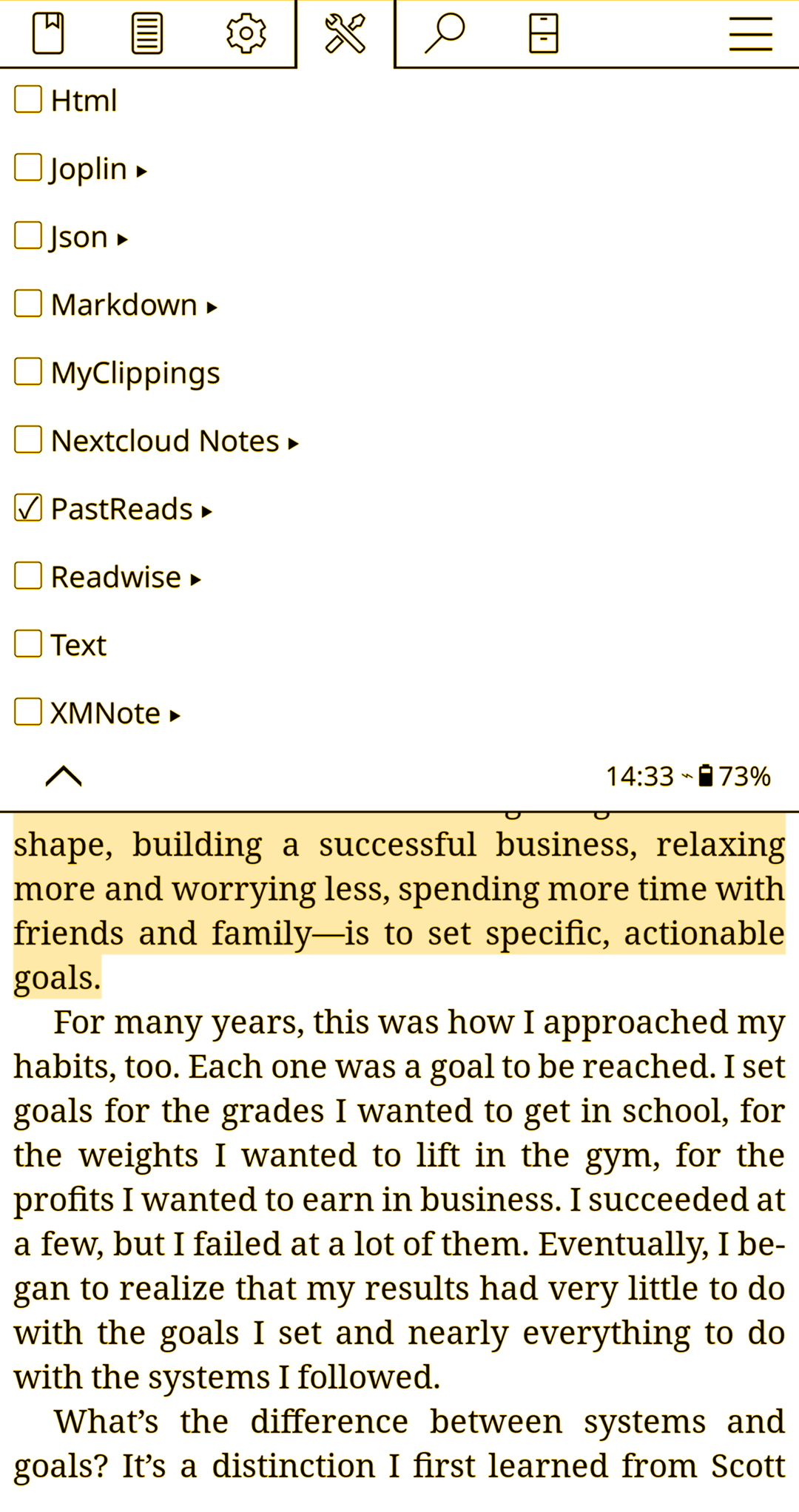
Updating the Plugin
To update the plugin, open the PastReads exporter settings in KOReader and tap Check for updates. If a new version is available, the plugin will update itself automatically.
What Gets Imported
When you export from KOReader, PastReads automatically processes:
- 📚 Book title and author information
- 🔍 Highlight content
- 📝 Notes attached to your highlights
- 📅 Highlight dates (when available)
- 📍 Location information within the book
- 🎨 Original highlight colors (shown with PastReads Pro)
Duplicate Detection
PastReads includes advanced duplicate detection, so you don’t need to worry about exporting the same highlights multiple times. The system automatically checks for existing highlights and safely skips duplicates without creating redundant entries.
Your Data
When you export from KOReader:
- 🔒 Highlights and notes are sent securely using your personal access token
- 🗑️ You can regenerate or revoke the token anytime from the Import modal
- ✨ Only the exported highlights and notes are stored in your PastReads library
Troubleshooting
If you encounter any issues:
- Plugin not listed: Confirm
provider-pastreads.kopluginis inside KOReader’splugins/folder (with theprovider-prefix). Then, fully restart KOReader. - Export fails / nothing appears: Ensure your KOReader is connect to Wi‑Fi. If it is and the issue persists, regenerate a fresh token in PastReads, and paste it again in KOReader.
- Highlights missing: After refreshing PastReads, try exporting again. Large libraries may take some time to process. If some books or highlights are still missing, try exporting to another format (like HTML) in KOReader to check if the highlights appear there. If they’re also missing from that export, the issue may be in KOReader. If the highlights show up there but not in PastReads, please contact support for help.
If problems persist, please contact our support team for assistance.