KOReader is great for highlighting. The harder part is what happens after: finding those passages again later, especially across many books.
I always wanted one searchable place for them. Somewhere I could save my highlights without effort, tidy them up, and get more out of books I finished months ago.
PastReads helps with that and has a small plugin you install on your KOReader device. Install it once, and your highlights land with one tap in a library you can search, tag, and revisit.
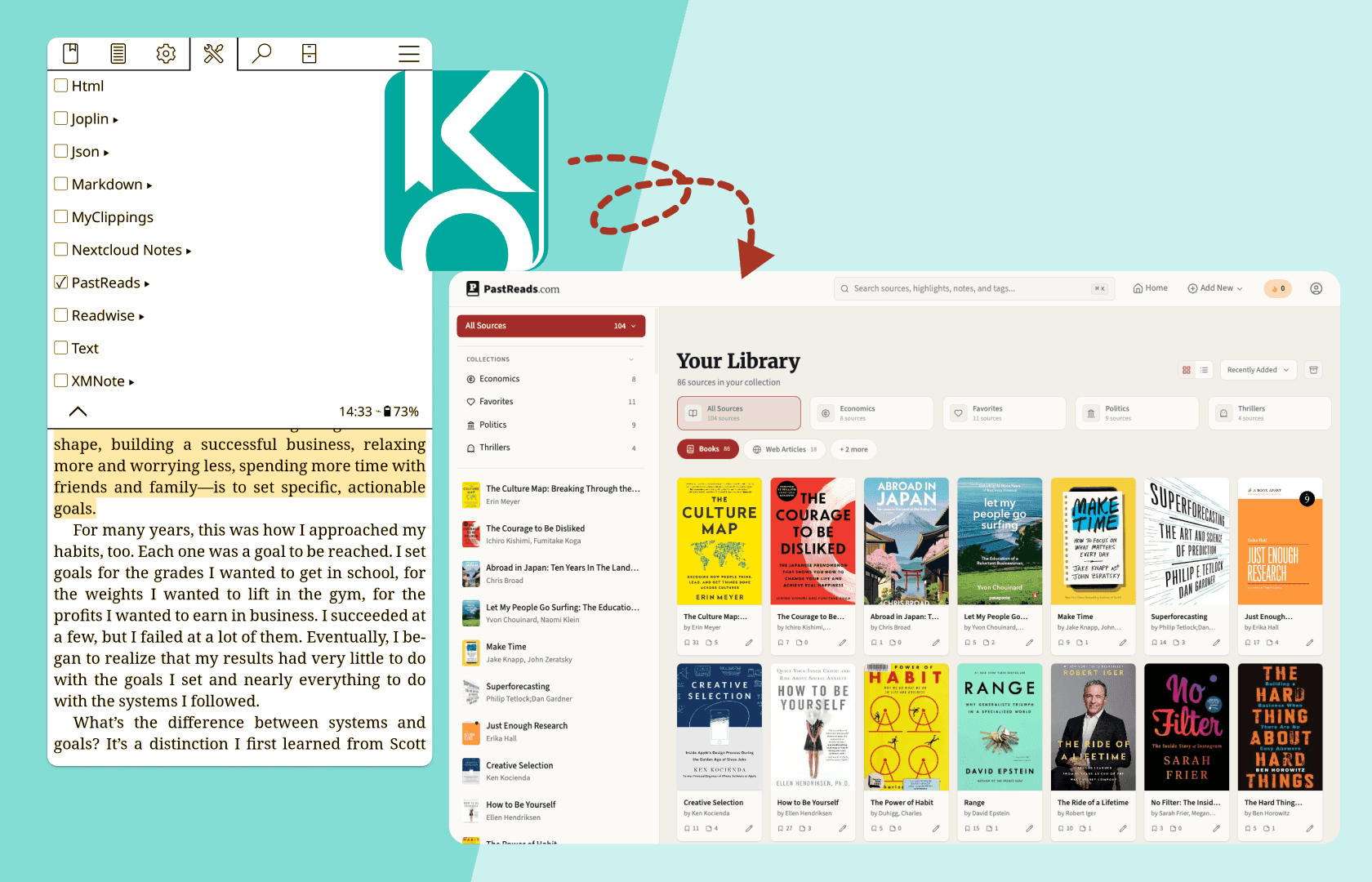
What PastReads does with KOReader
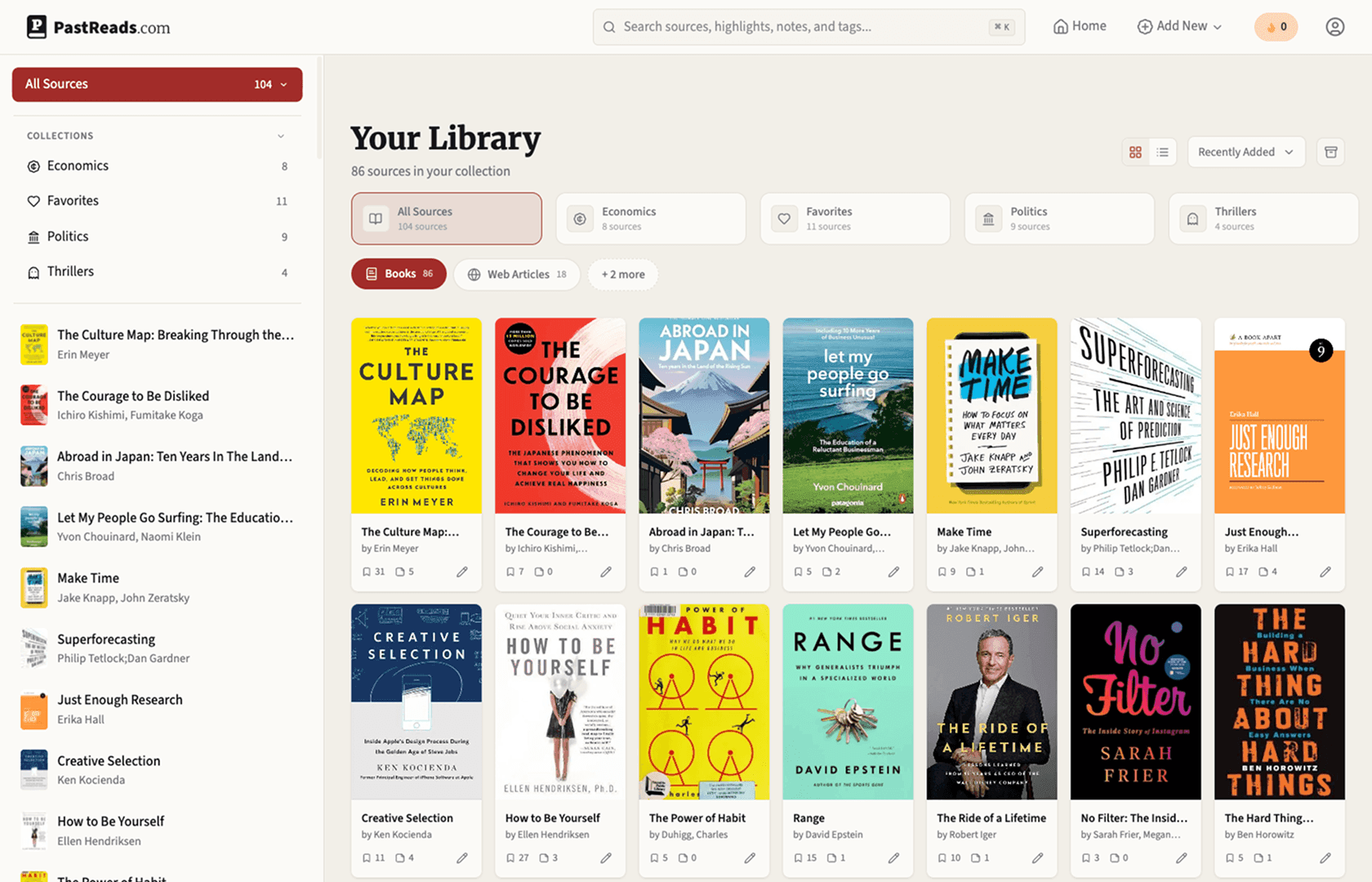
PastReads is a free personal library for highlights and notes. With the KOReader plugin, you send highlights over Wi-Fi into your PastReads account so you can:
- Search every highlight across your books
- Edit messy selections and add notes
- Tag themes and group books into collections
- Favorite the lines you want to keep close
- Revisit old passages with Reading Recaps (Pro)
Here’s how to set it up.
Set up the PastReads KOReader plugin
Setup takes a few minutes the first time because you need to connect KOReader to PastReads. After that, it just takes one tap to keep synchronizing your highlights and notes.
1. Create a PastReads account
Go to pastreads.com and sign up. You can also use the iOS app or the Android app to create your account.
2. Download and install the KOReader plugin
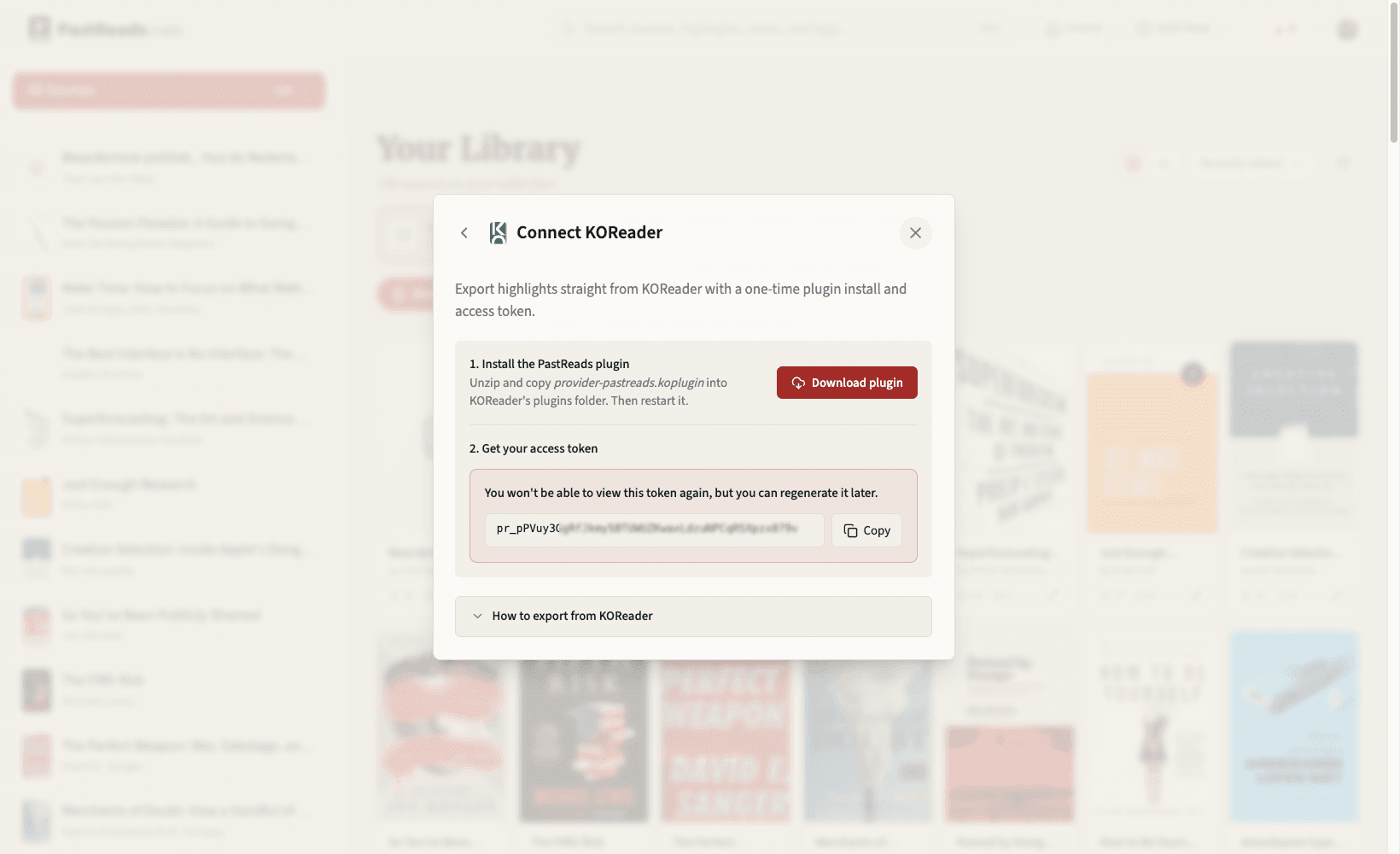
Download the PastReads plugin from here.
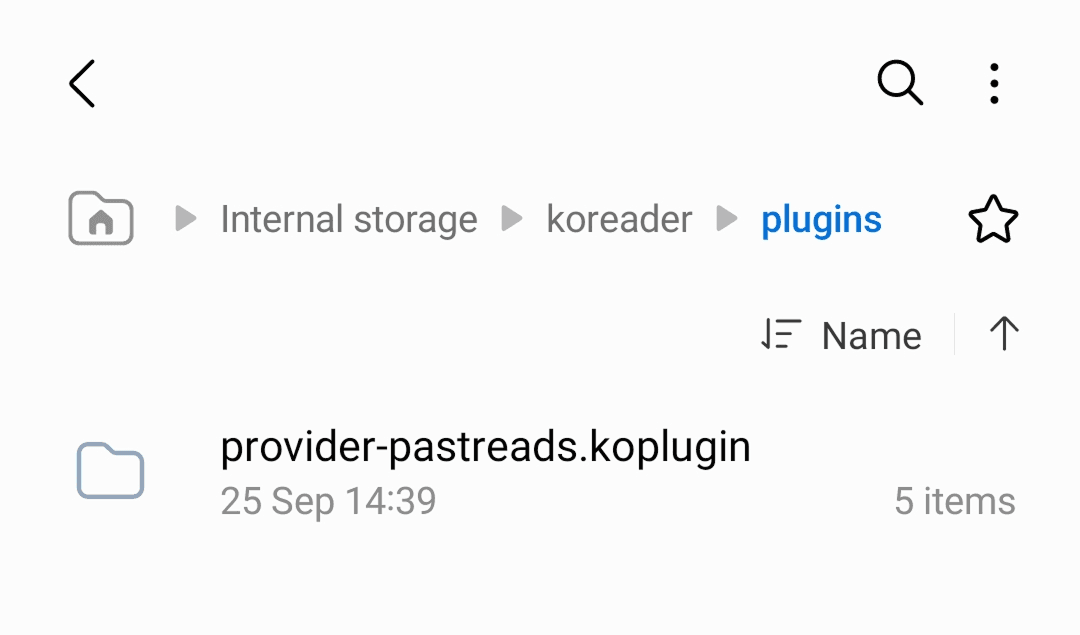
Unzip the archive and copy the provider-pastreads.koplugin folder into KOReader’s plugins/ folder. Then restart your KOReader so the plugin loads.
3. Generate an access token in PastReads
On the PastReads website or in the mobile app, open Import, choose KOReader, and click Generate token.
Copy the token right away, because you will only see the full value once. You can always revoke and regenerate it if you need a new one.
4. Connect KOReader to PastReads
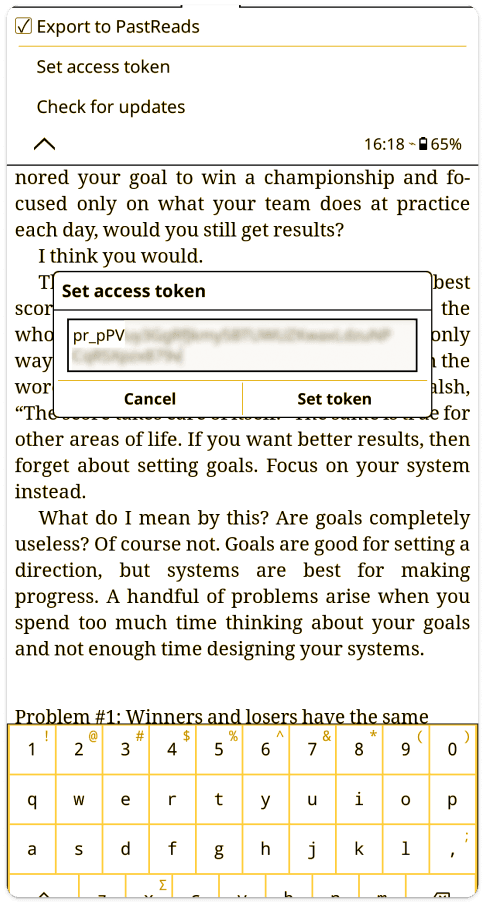
On your KOReader device, tap the Tools menu, then Export highlights → Choose formats and services, then PastReads.
Tap Set access token and paste the access token. Finally, enable Export to PastReads.
From here on, PastReads is available as an export target inside KOReader.
How to sync and export KOReader highlights
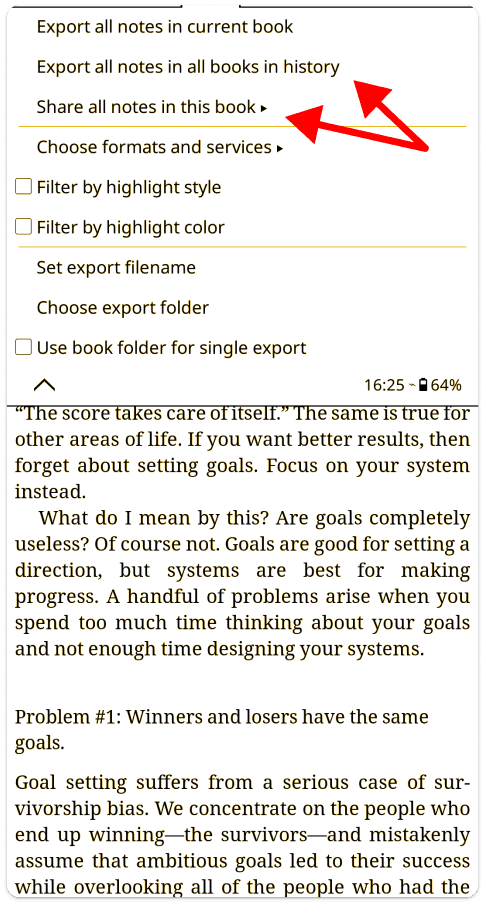
Whenever you finish a book or want a fresh sync, make sure your KOReader device is on Wi‑Fi. Then open Export highlights in KOReader and export the current book or your library.
You can also use Share as pastreads where that option appears.
New highlights usually show up within a minute in your PastReads library.
Good to know: re-exporting is safe. PastReads checks for duplicates, so sending the same book again will not create any duplicates.
Now you can organize your KOReader highlights
PastReads brings over the most important parts of your KOReader highlights and notes:
- The book title and author (and it scans for cover images)
- Highlight text
- Any notes you wrote
- Highlight dates
- Location in the book
- Highlight colors (needs PastReads Pro)
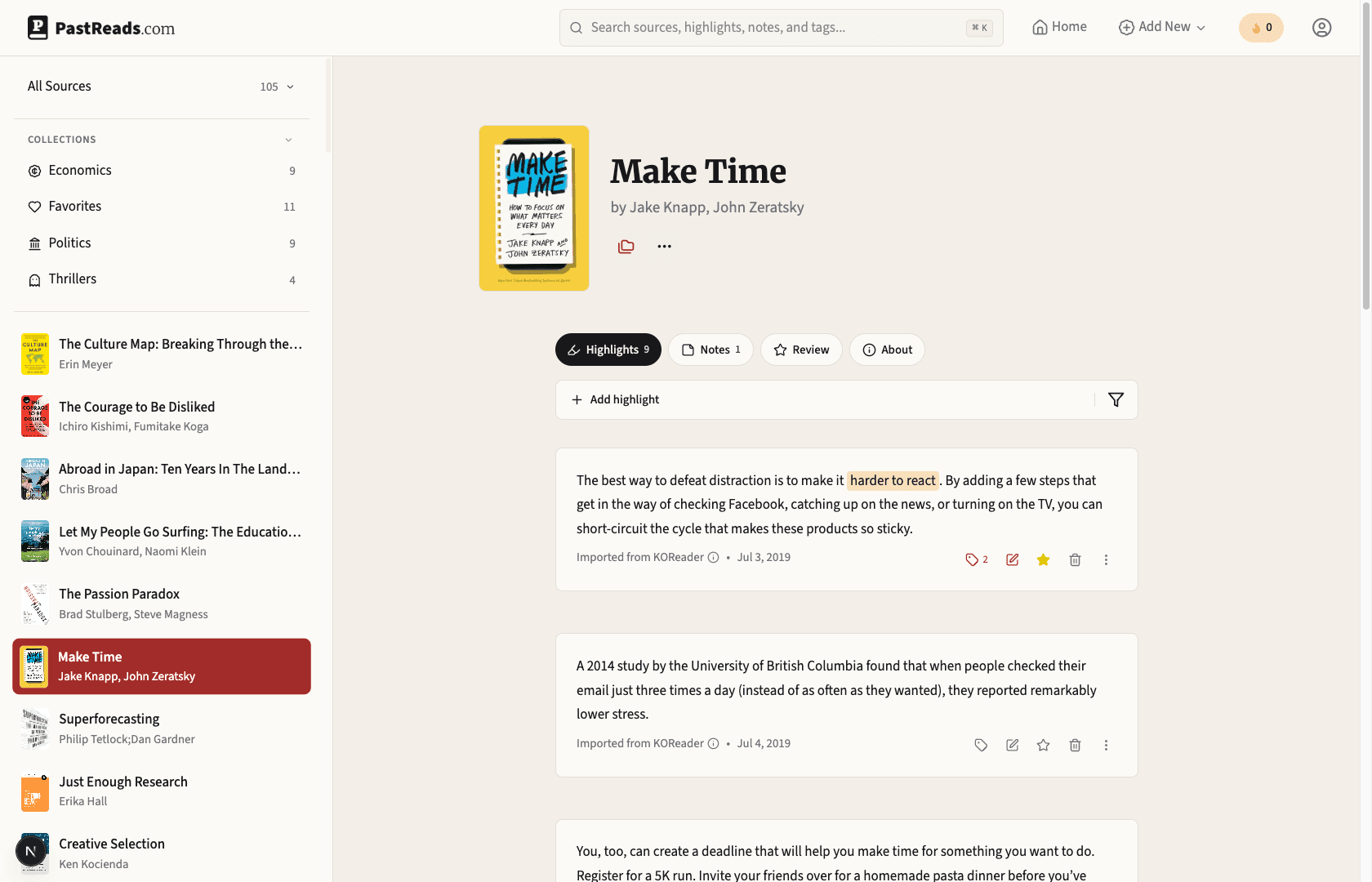
Of course, importing is only the first step. The real value comes when you explore and engage with your library.
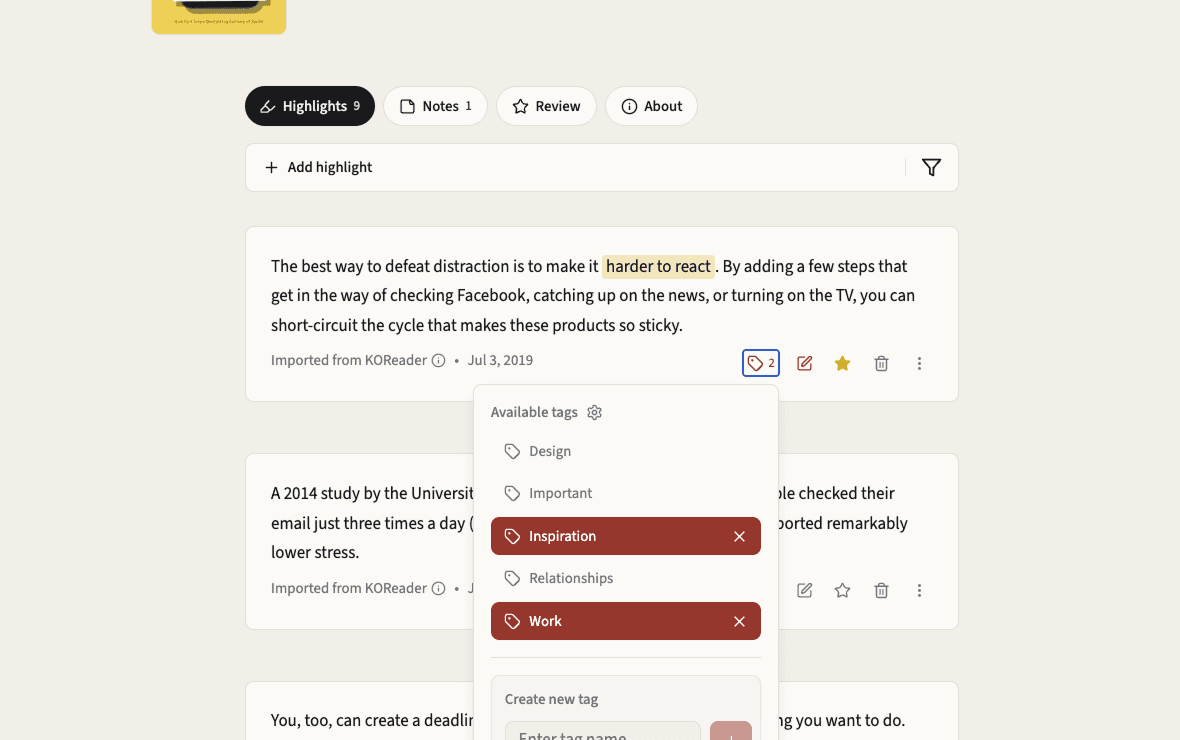
Open any imported book to tidy up a highlight, add a quick note while the idea is fresh, favorite a line, tag it with a theme, or group related books into collections.
Set up daily reminders
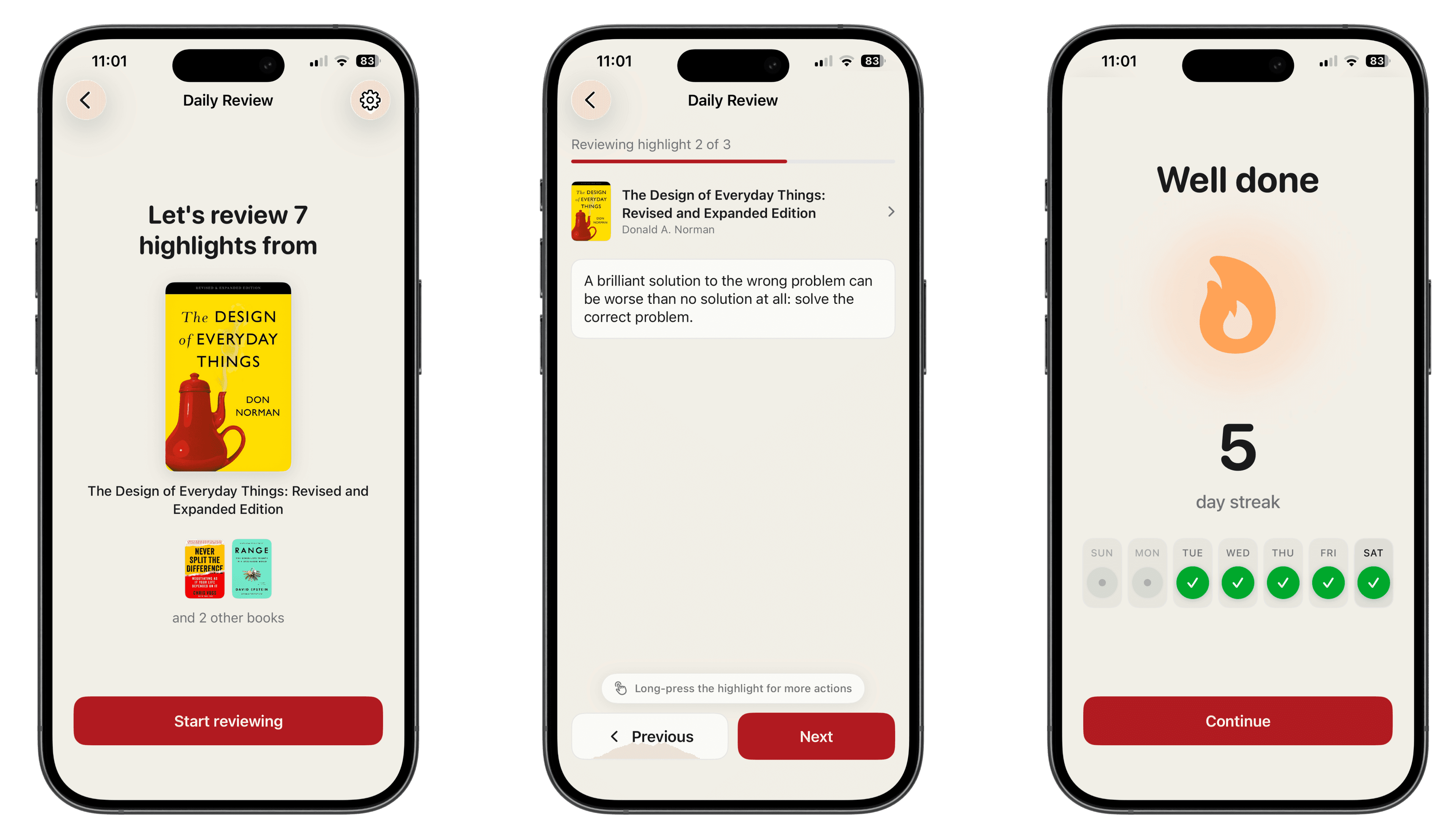
One of the key features in PastReads is getting daily reminders with a couple of your highlights and notes.
For example, I have a daily reminder set up in the PastReads app so I get a push notification every morning to review a few old highlights and continue my streak.
It is a gentle way to remember things from books I have finished and liked.
After you have a few highlights in your library, PastReads prompts you to enable these reviews. You can also tap the streak icon in the top right to set them up anytime.
Doing more with your library
You might not read only on KOReader. Once your library is in PastReads, you can keep adding highlights from other apps and devices (even capture something with your camera) so everything lives in the same place.
From there you can keep organizing your content, and also export to Notion, Markdown, PDF, or CSV (although this requires a little upgrade).
PastReads is a great way to get more out of your KOReader highlights and notes in a simple way.