If you read on a Kobo, one of the most satisfying parts is highlighting a line that stands out, or jotting down a little note. You’re setting aside sentences that catch your attention as you go.
Then you finish the book. The highlights stay on the device. Life moves on. And those quotes quietly disappear into the fog of “I’ll look at them later.”
That’s where PastReads comes in for me. It’s one simple place for everything I highlight, including Kobo, and where I can search, organize, and memorize those passages again.
Let me give you a walkthrough of how this works.
The problem with Kobo highlights
Kobo is wonderful for reading. It is less wonderful for remembering.
Your highlights live on the device. They’re not easy to browse later, or search across books.
That’s the gap PastReads fills. Keep reading on your Kobo like normal. PastReads is where those highlights go to live a second life.
What PastReads does
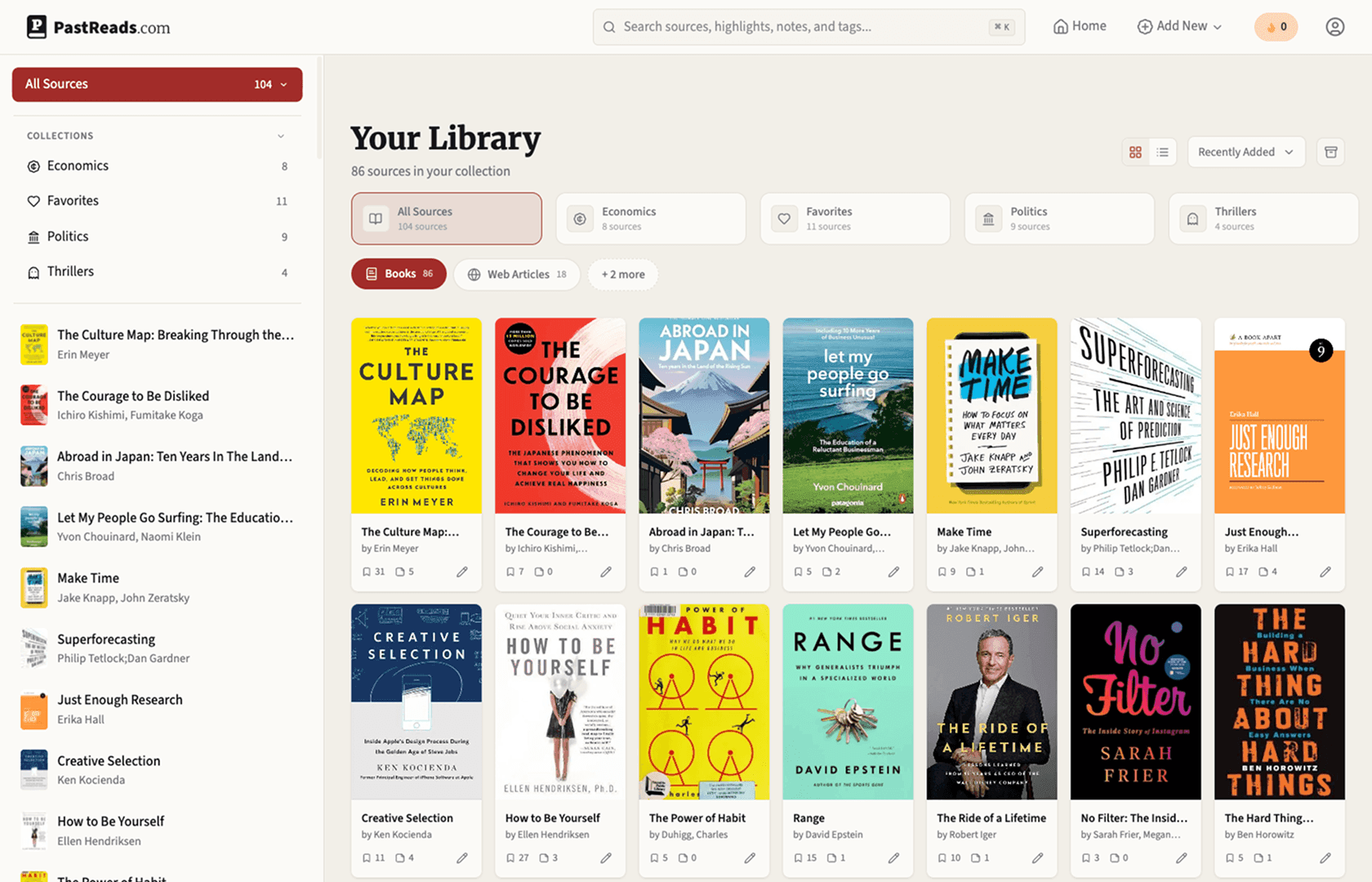
Think of PastReads as your personal reading library for highlights and notes.
You import from Kobo, Kindle, Apple Books, and even web articles. Once everything is in one place, you can edit passages, add notes, tag what matters, group books into collections, and search your whole library in seconds.
The great thing is that the core library is completely free. You get unlimited Kobo imports, highlights, and notes.
A quick walkthrough: how to bring Kobo highlights into PastReads
Here’s the flow I recommend. It’s the smoothest path, and it keeps things simple.
1. Create a PastReads account
Go to pastreads.com, sign up, and you’re in. A blank library is waiting for your books.
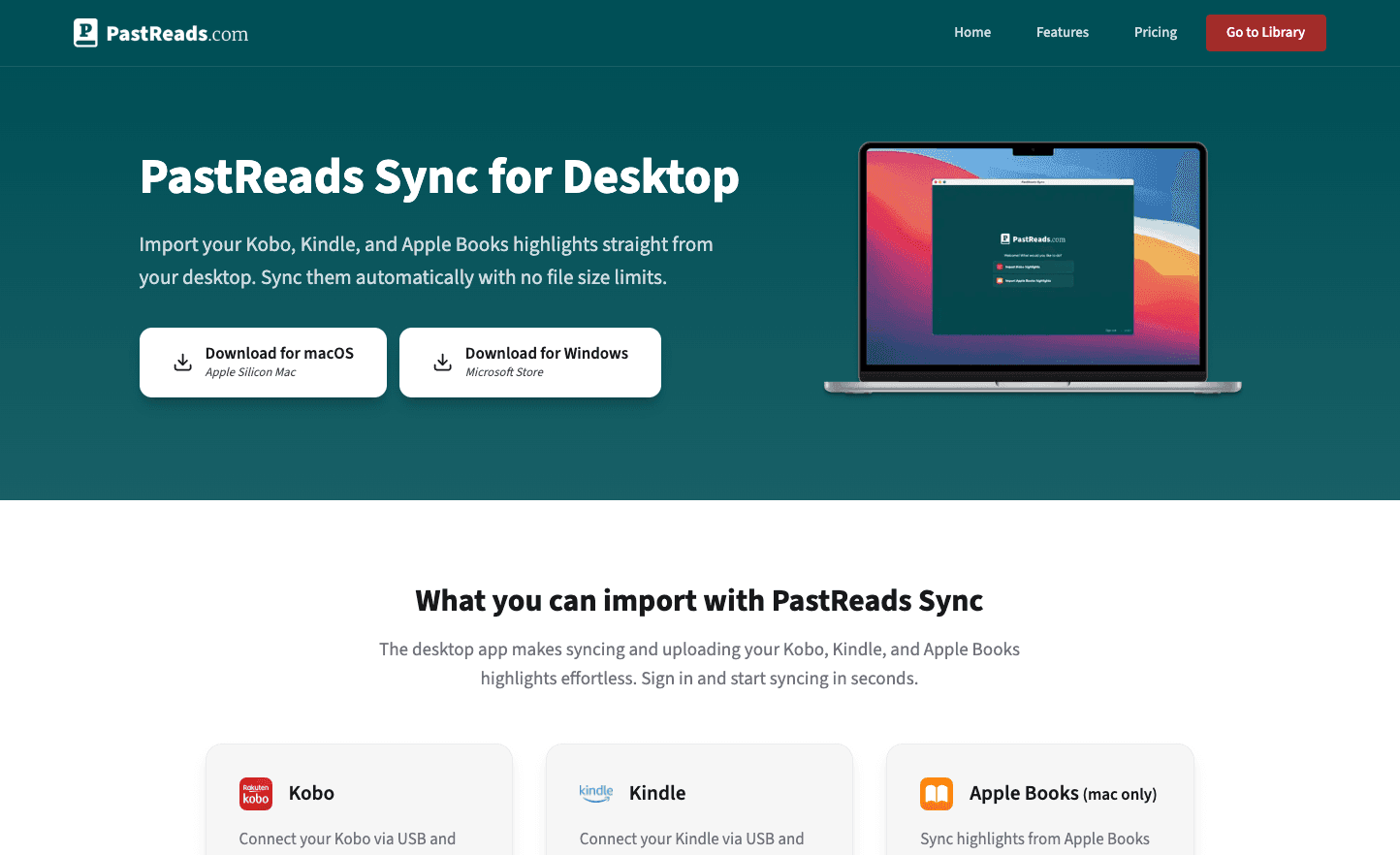
2. Download PastReads Sync
This is the desktop app made for e-reader imports. It works on both MacOS and Windows, and is the easiest way to pull highlights off your Kobo with just one click.
Download the desktop app from this page, open the app, and sign in with the same PastReads account.
3. Plug in your Kobo
Connect your Kobo to your desktop with a USB cable. If the device asks whether you want to connect to the computer, tap Connect.
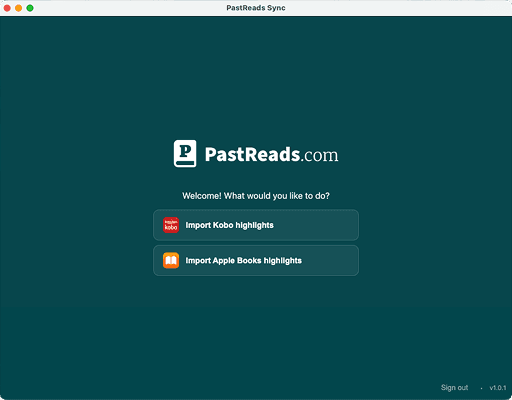
4. Choose “Import Kobo highlights”
In PastReads Sync, you’ll see a welcome screen asking what you’d like to do. Pick Import Kobo highlights.
When your Kobo is detected, you’ll see something like “Kobo detected.” Then click Sync from connected Kobo.
That's it! The app processes your Kobo files locally on your Mac and only sends the extracted highlights and notes to your PastReads library. That privacy piece matters a lot.
The import is usually finished in seconds. When it’s done, open PastReads in your browser. Your books should be waiting.
Don't want to install any software?
You can also import from the PastReads website by uploading the Kobo database file yourself. Connect your Kobo, show hidden files on your Mac with CMD + SHIFT + ., open the .kobo folder, and drag in KoboReader.sqlite.
PastReads Sync is just nicer for most people, because it detects the device for you. You can find a fully detailed guide here: Import Kobo highlights.
What shows up in your library
After a sync, PastReads brings over the things from your Kobo that matter.
Think: Book titles. Authors. Your highlighted passages. Any notes you attached. Even the dates, so you can see when something stood out to you.
You can open a book and flip through every line you marked. Or search for a word you vaguely remember and find the exact quote in seconds.
Re-syncing is safe too. If you import again later, PastReads skips duplicates. So you can keep highlighting on your Kobo and bring new passages over whenever you like.
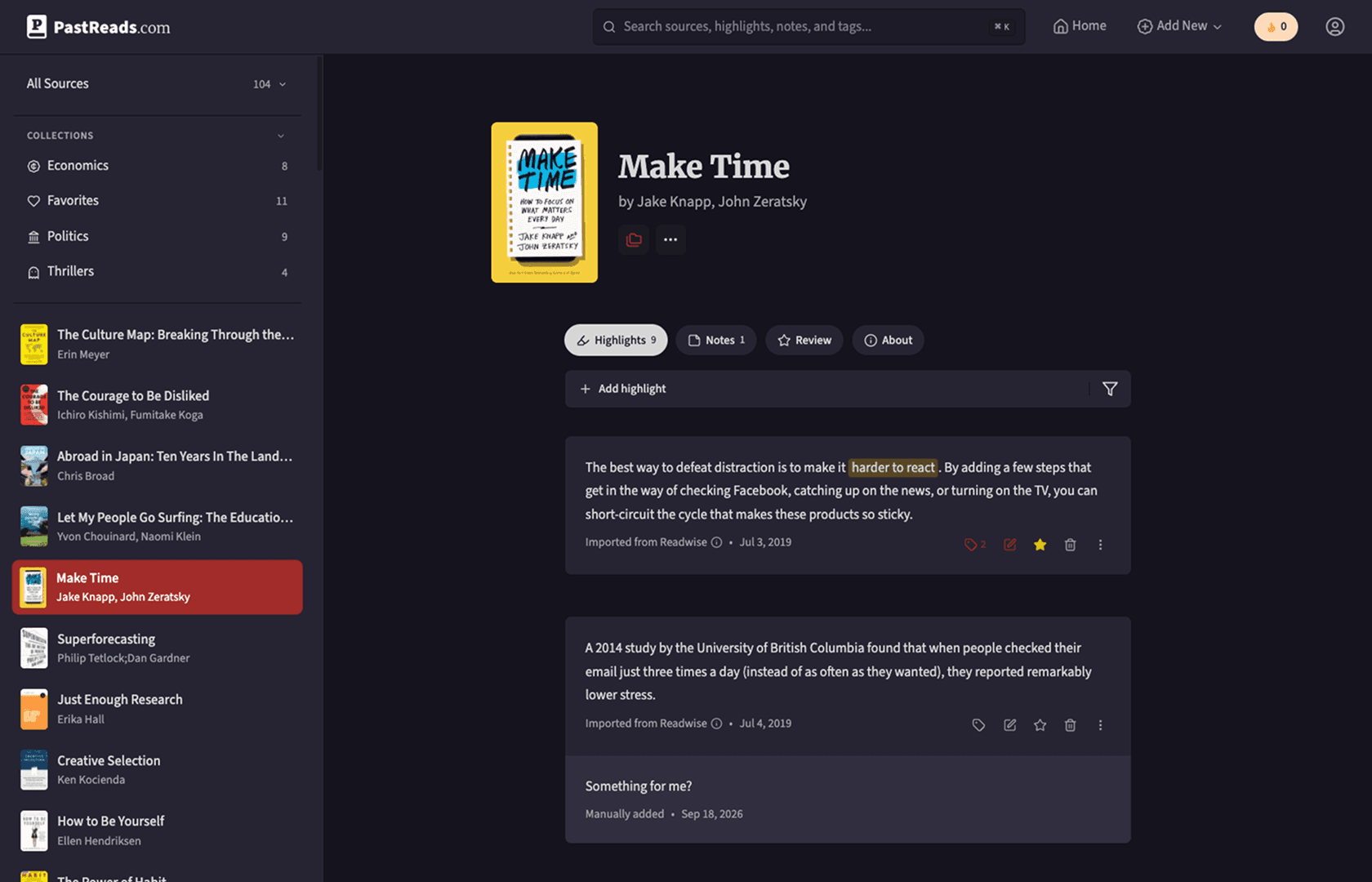
Of course, you can also install the PastReads app on your phone or tablet. It's available in the App Store and on Google Play. After signing in, all your Kobo books are available to revisit any time.
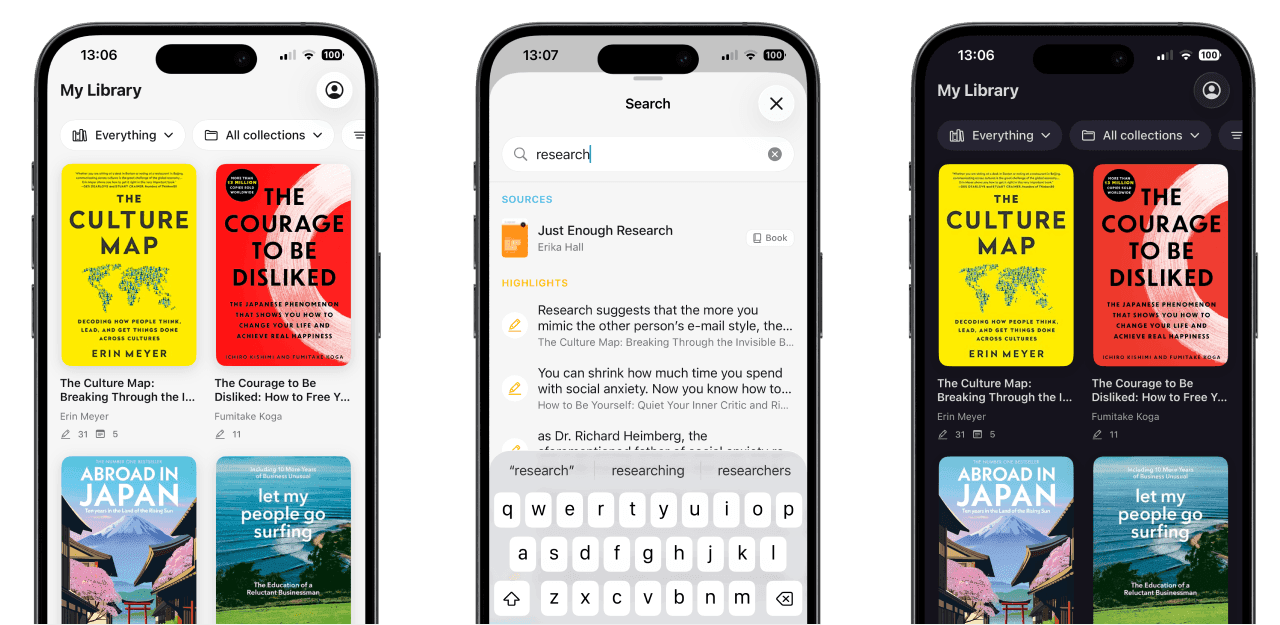
Now comes the fun part
Importing is only step one. The real win is what you do after.
Open a book and clean up a highlight if the selection was messy. Rate the book you read. Add a short note. Favorite the lines you know you’ll want again. Tag themes like “habits,” “writing,” or “leadership.” Drop a few books into a collection for a project you’re working on.
With all these tools, my Kobo highlights no longer feel like forgotten leftovers. They truly become my personal reference library.
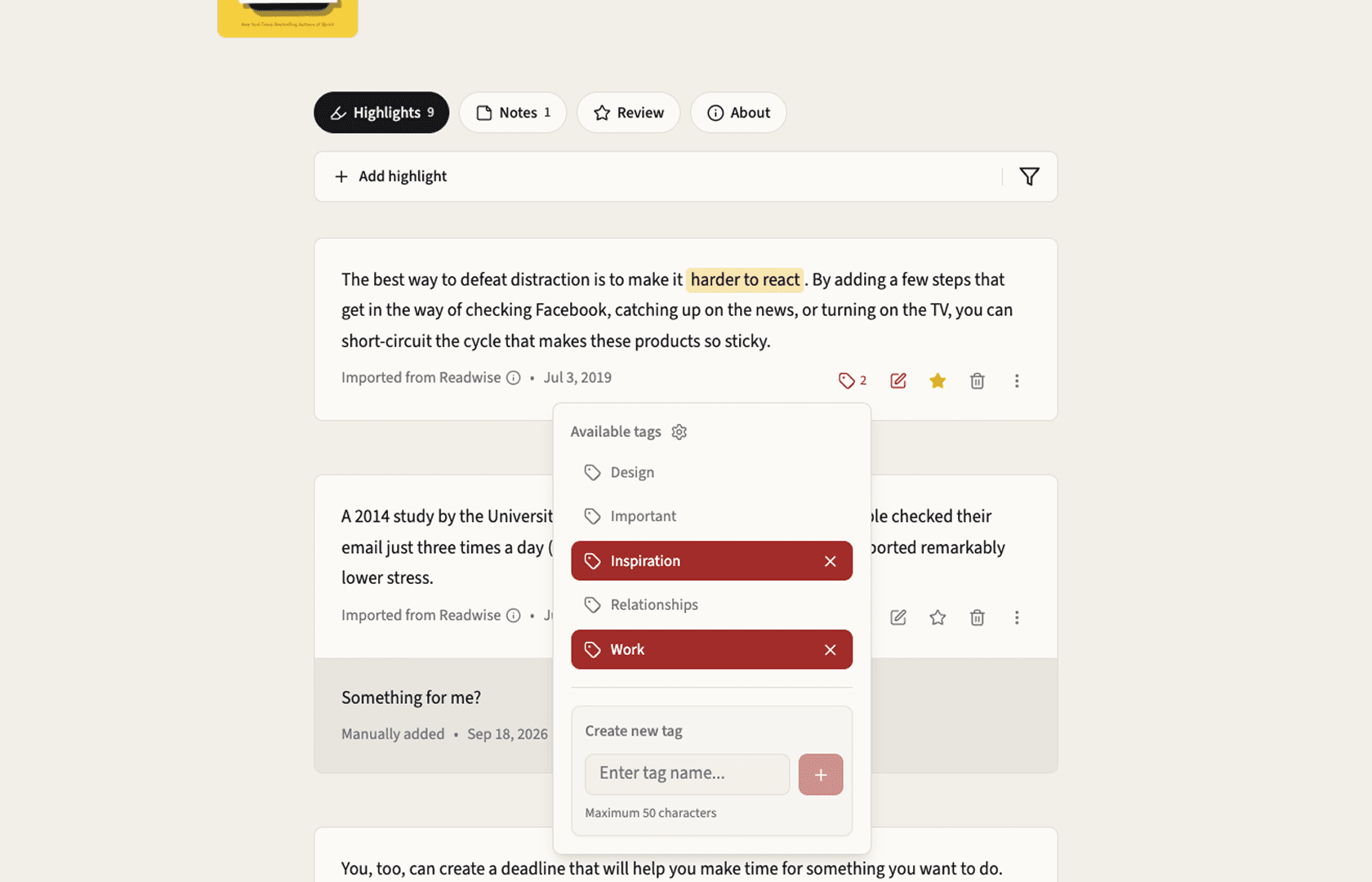
Get gentle reminders to revisit your highlights
Even with a beautifully organized library, it can be tricky to find time to revisit what you save.
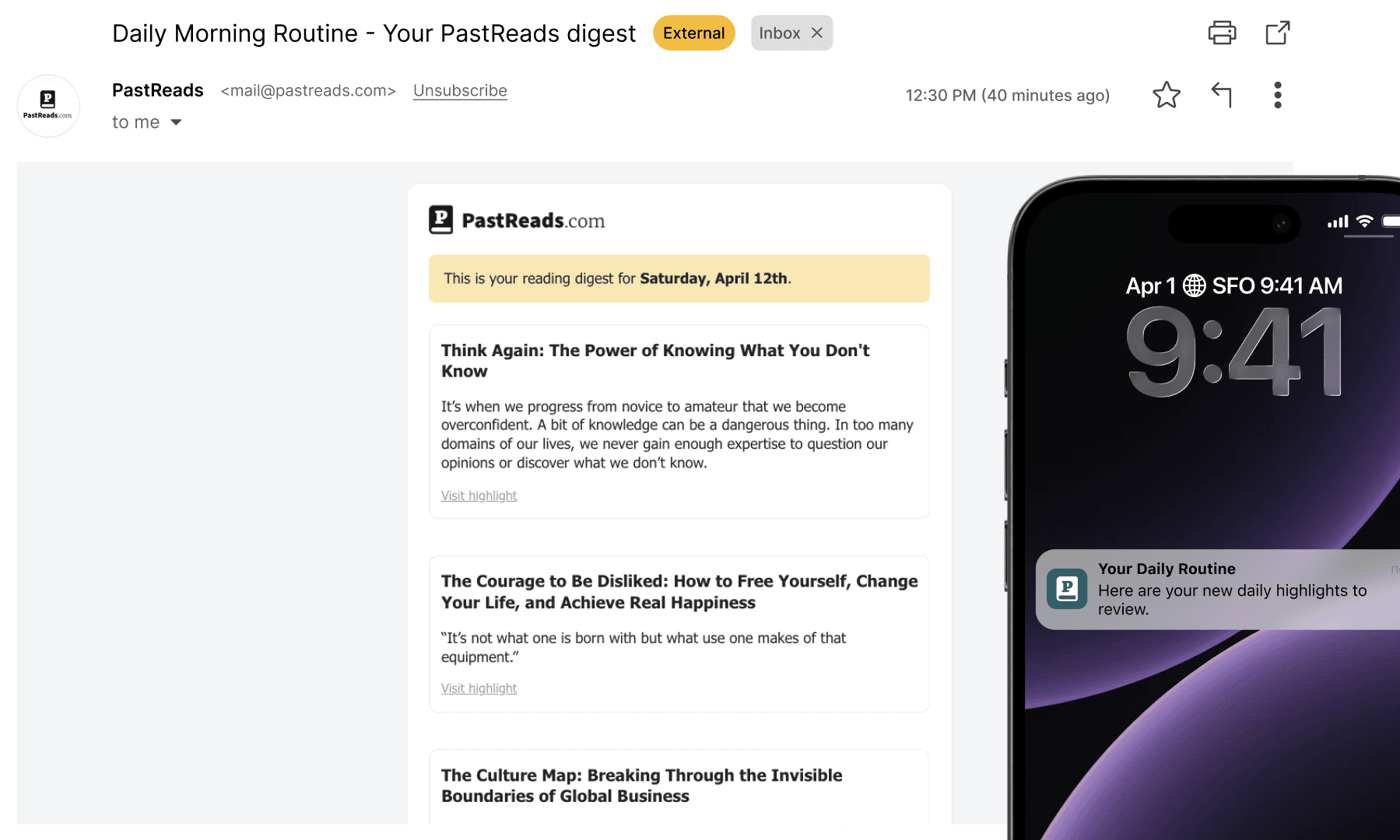
That’s why a lot of people discuss memorization techniques (such as 'spaced repetition' or flashcards). Tools like Readwise and PastReads offer Reading Recaps.
With PastReads, you choose a rhythm (like daily, weekly, or monthly), optionally select a few book categories to include, and it brings your old highlights back to you by email or as a push notification in the app.
These gentle reminders help you remember a few passages each time, from books you already read & loved. You can quickly review them whenever you have a moment.
With PastReads (as with other platforms), this feature is only available on the Pro plan, so keep that in mind.
More than Kobo
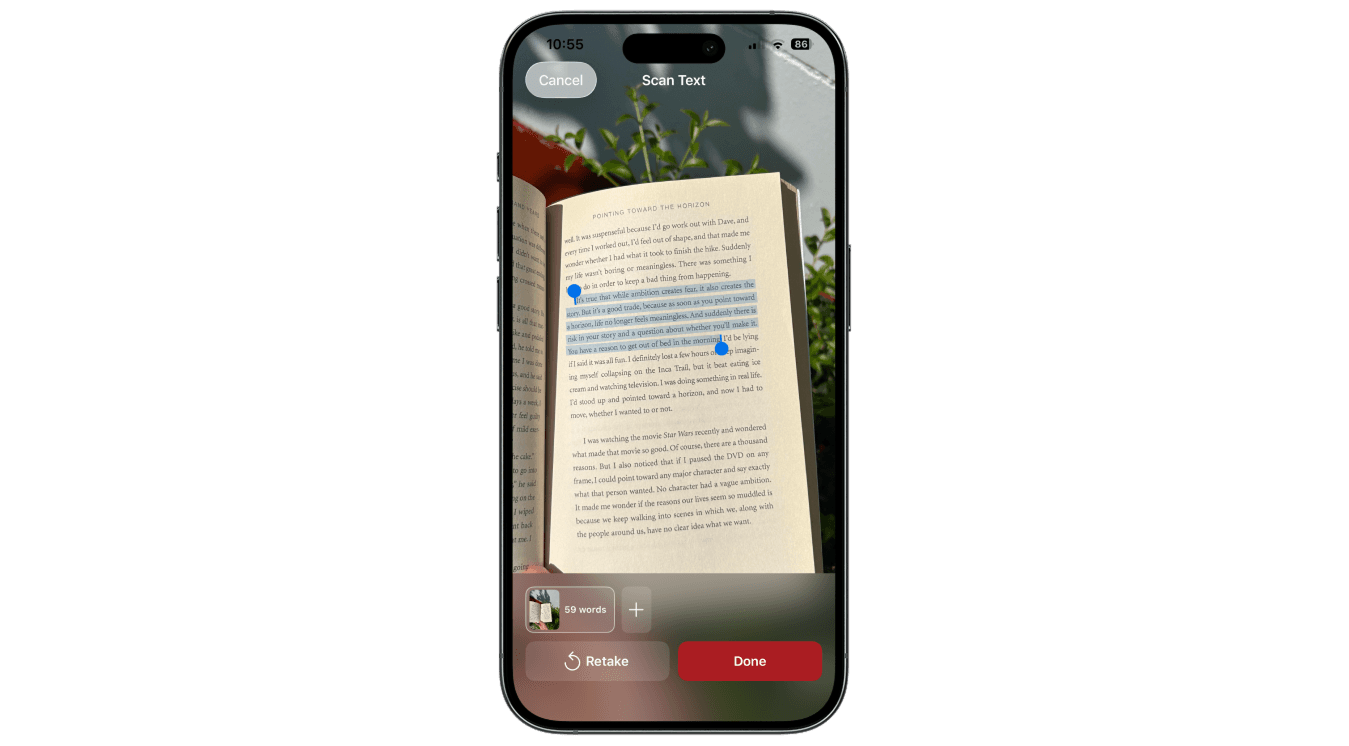
A lot of readers don’t live on a single device. They save highlights from multiple places. Articles in Chrome. Apple Books on the side. Maybe even physical books.
PastReads is built for that. The Chrome extension saves web highlights. The iOS and Android apps help with sharing from other apps and scanning paper pages. And Apple Books imports sit right alongside your Kobo books.
Try it out
Plug in your Kobo. Open PastReads Sync. Click sync. And watch your books show up.
You can import all your Kobo highlights and build a full library on the PastReads free plan. It includes search, notes, tags, favorites, and more as well.
PastReads Pro unlocks a few nice extras like Reading Recaps, advanced filters, and export options to Notion or Markdown.