Notion is a great home for a reading database. It is taggable, searchable, and flexible. When I tried Notion for the first time, I immediately organized all my notes I made on paper or elsewhere.
But what about highlights and notes taken from e‑readers? What about the highlights you save from Kindle, Kobo, Apple Books, or even from the web?
With the workflow below, you can get your highlights into Notion quickly using PastReads.
Importing is 100% free in PastReads for Kindle, Kobo, Apple Books, and more while you're on the free PastReads Pro trial.
Step 1 — Import your highlights into PastReads
PastReads is a free tool where you can easily import your highlights and notes and start organizing them.
The first step now is to bring your highlights and notes into PastReads. PastReads supports fast, unlimited book imports on the free plan.
First, register for a free account. Then upload your highlights to PastReads using the following quick steps:
-
Kindle
- Connect your Kindle device: see a quick guide here.
- Or open the Kindle app and follow these quick instructions here.
-
Kobo
- Connect your Kobo via USB and follow these instructions.
-
Apple Books
- Open the Apple Books app on your phone and follow these quick instructions.
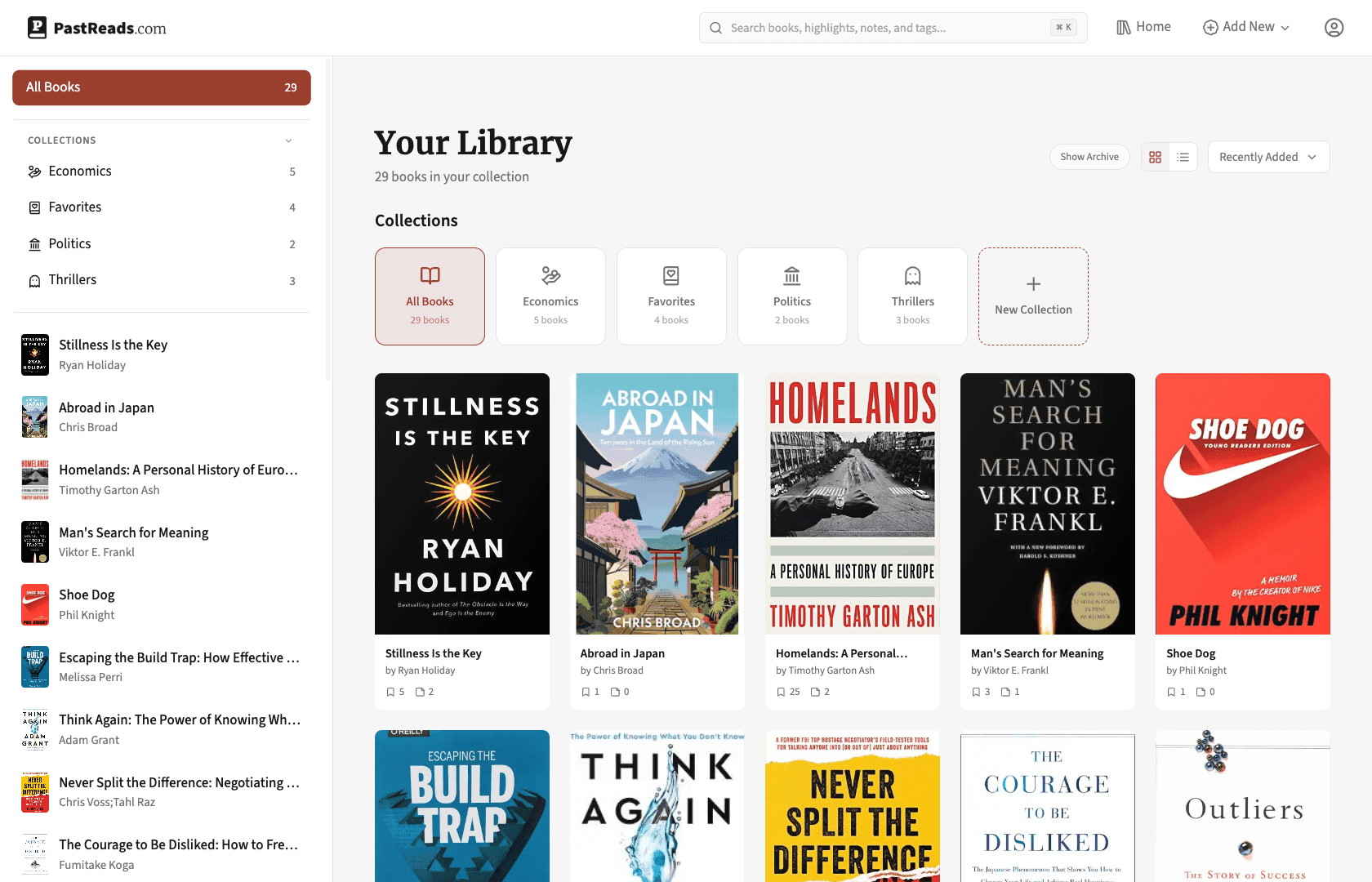
Once imported, PastReads keeps your content clean, de-duplicated, and searchable. You can add notes, tags, and collections as needed. You should now have a nicely organized library.
Step 2 — Get your highlights into Notion
Make sure you complete the onboarding steps in your PastReads interface. This will give you a free two-week trial. That's all you need to export all your highlights to Notion!
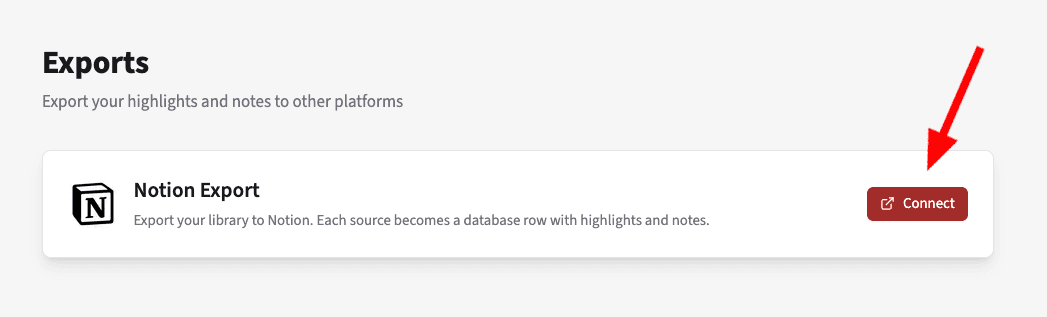
To get started, click your profile image at the top right, then click "Connect".
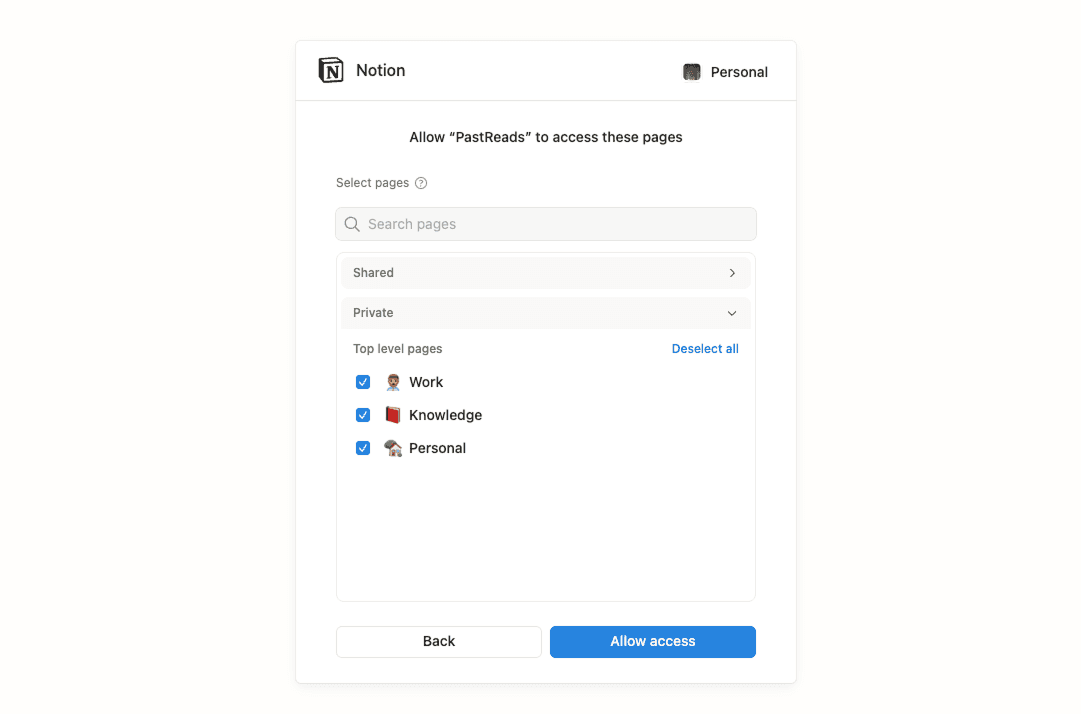
You will be redirected to Notion. Click the "Select Pages" button.
On the next page, I usually select all pages. This lets me move the highlights database between pages later without losing API access because of permission issues. If you already know where you'd like your highlights to be stored, you can select a specific page.
Back on the PastReads Export page, you're prompted to set up the database. You can create it at the workspace level or under any page.
Then click "Create Database". Go to Notion and confirm that an empty "PastReads" page has been created. You can rename it in Notion if you wish.
Once the page exists, click the "Export Library" button in PastReads. Your highlights and notes will now be exported to Notion. This can take up to 30 minutes.
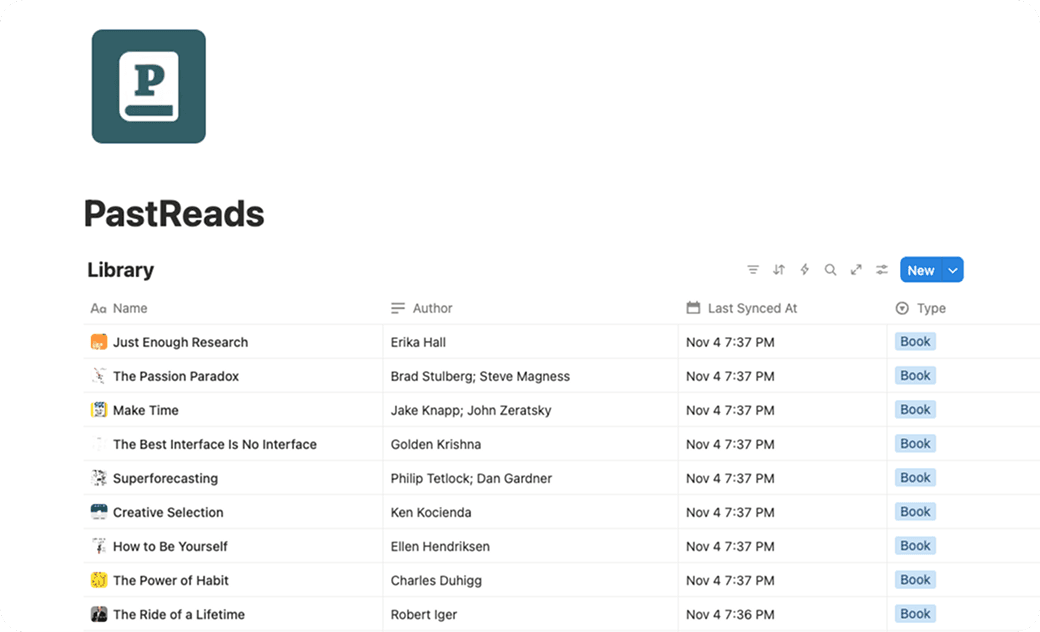
You should now have all your highlights and notes in Notion!
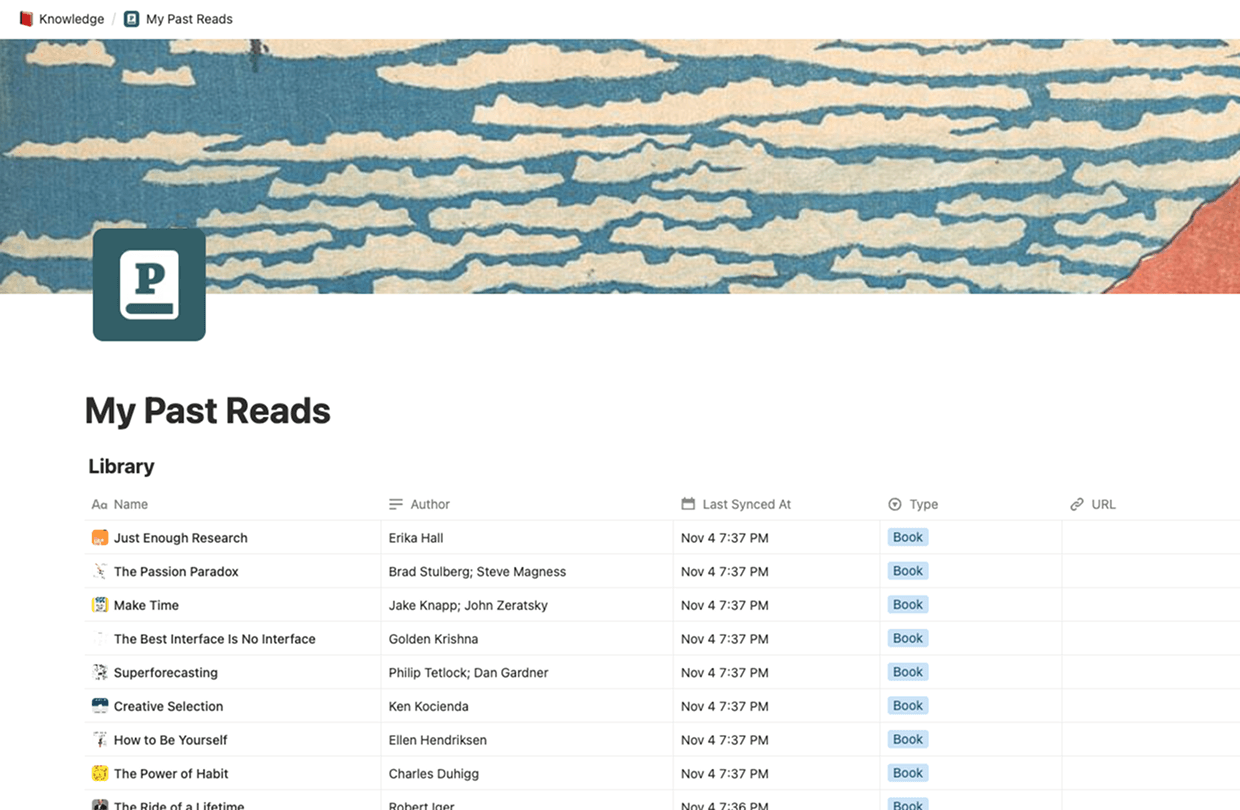
Inside the Notion database, each book is added as a new entry, with the highlights and notes as content.
You can also export again in the future once you add new books. Highlights are added in chronological order.
Highlights and Notes
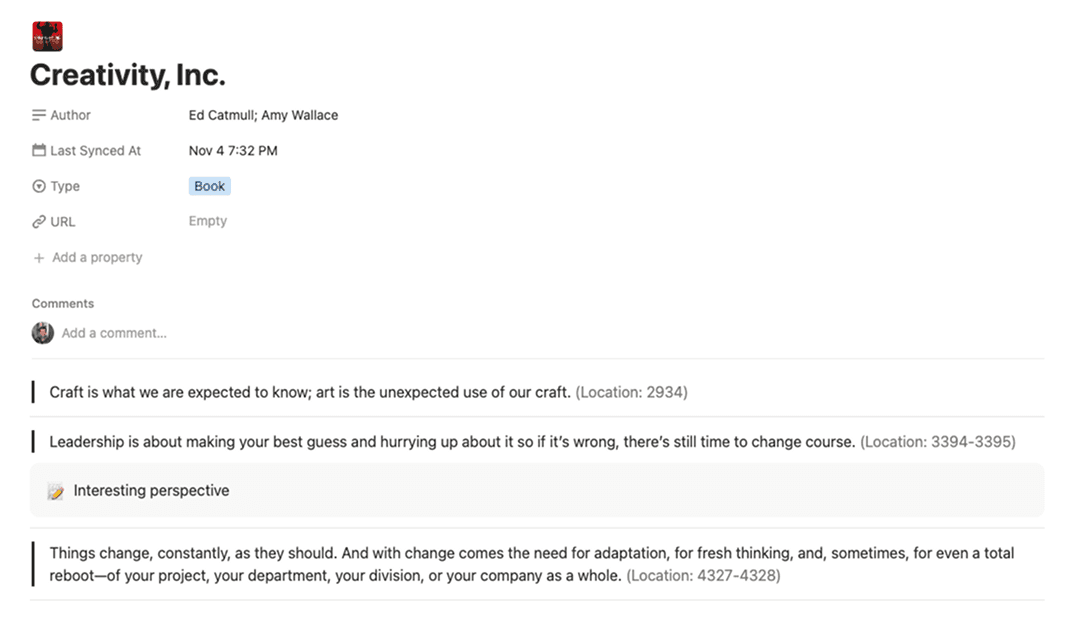
Below is an example of how highlights appear in Notion for one of my books. Each highlight is added as its own text block, and any notes are displayed as a callout beneath the corresponding highlight.
You'll also see that some metadata is included in the export, such as the book’s cover image, author, and highlight locations.
Alternative Solutions
If you don't want to use PastReads or it's not working for you, here are a few alternatives to consider.
1. Readwise
Readwise is a great (but paid) tool that includes export functionality to many external services, including Notion.
You can create an account at readwise.io, then go to the Readwise Export page and select the Notion option.
There is also a nice video demo with instructions:
2. The technical way
If you have a technical background and are familiar with Node.js and GitHub, you can create your own integration.
Admittedly, this is quite involved and not for everyone, but if you'd like to give it a try, someone created a great guide here.
3. Other tools
I have tried a few other tools as well, such as the free "Web Highlights" extension for Chrome. However, some of these tools are trickier to use when it comes to retrieving your existing highlights (from a clippings file, Kobo file, etc.) and bringing them into Notion.
Anything missing? Reach out and let us know.